
Configure steps and detection rules
Detection rules are set on each step. The workstation uses them to judge whether the step was done right. This page only covers how to work in the admin console, choosing a detection type, common settings, reference images and AI-generated rules. What each detection type means and how to choose one is in the "Detection rules" module.
In the editor, select the operation and click the ⑤ Steps & detection rules tab in the middle column. The step table is a full-width table. Click a row to expand that step's detection rules.
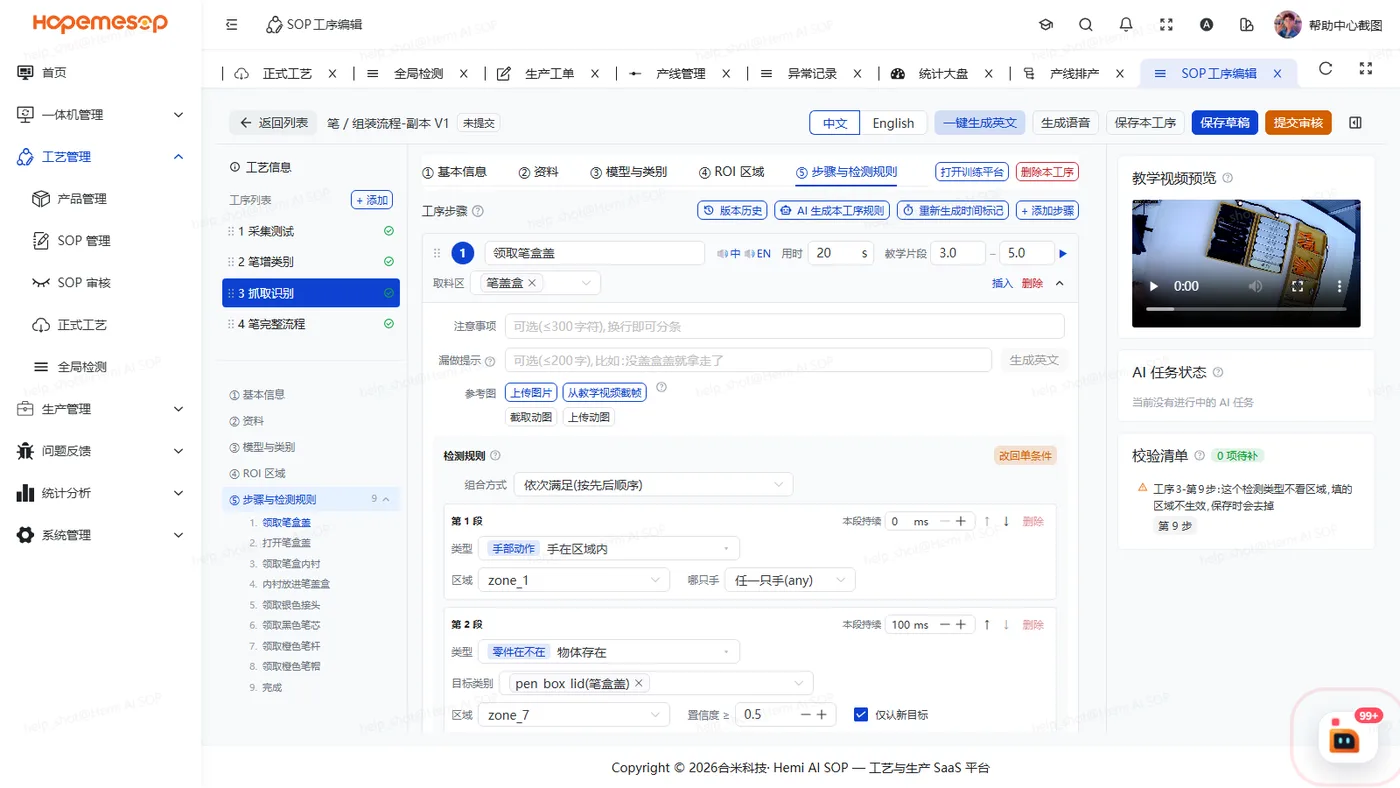
Choose a detection type
- Click the "检测类型" (Detection type) box. A picker window opens.
- The left side is grouped by category, and you can search. Click a type once to see its description.
- Double-click to use it, or click 选用 (Use) at the bottom.
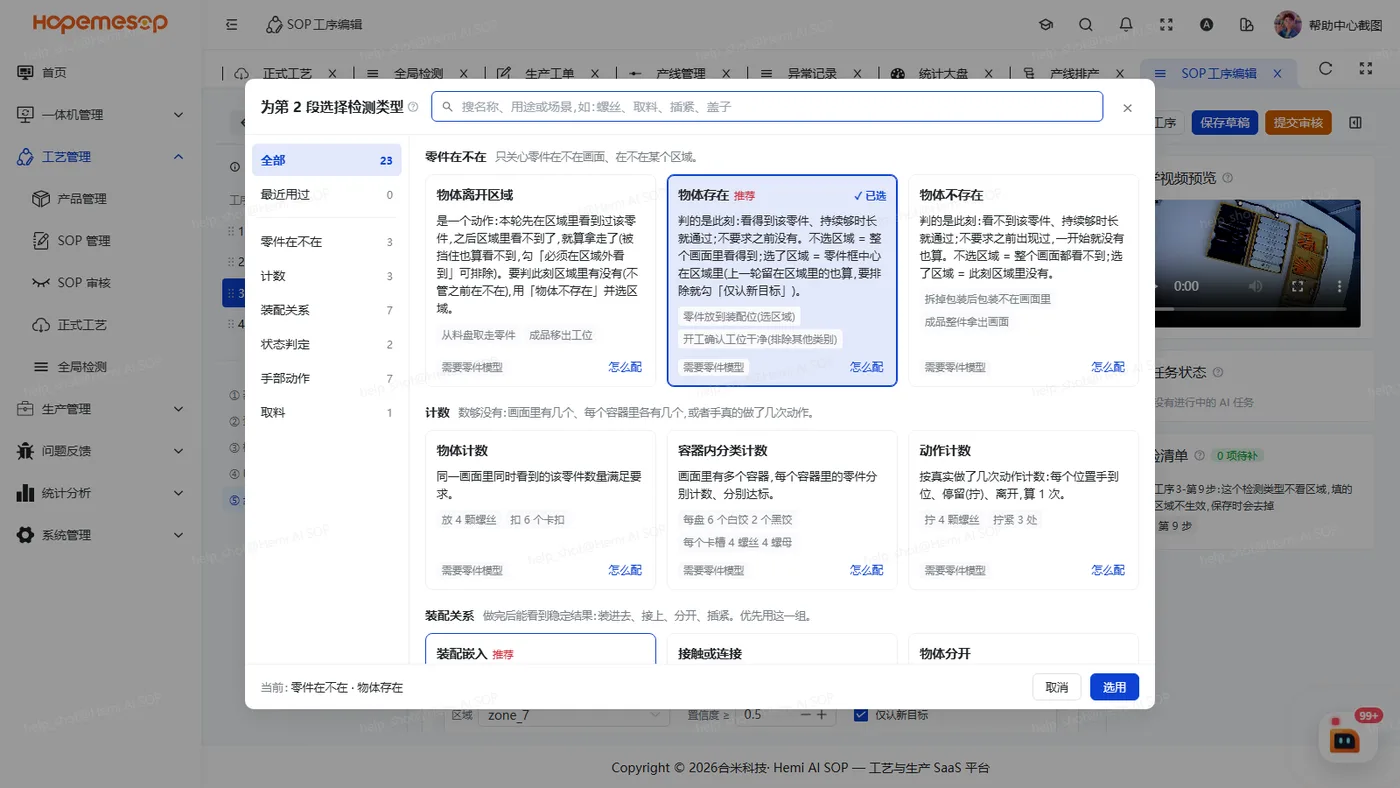
If the operation has no model yet, only three types are available
You can only choose "手在区域内" (Hand in zone), "手离开区域" (Hand left zone) and "从格子取料" (Pick from cell). These three don't need to recognize parts. Other types need a trained model first. See Train and choose a model.
The left side of the window has six groups: Present or absent, Counting, Assembly, State, Hand actions and Picking. When the number has to be enough (place 4 screws, 6 per plate, really drive 3 times), look in the Counting group. For what all the types mean, see See all 23 types. For how to pick one, see Choose a detection type.
Whether a part is there: only three cards
- Object present (物体存在): the zone is optional. With a zone, it checks that the center of the part's box is in the zone right now (a part left over from the last round also counts; to exclude it, check "仅认新目标" (New targets only)). Without a zone, it checks that the part is visible anywhere in the image. Without a zone you can check "排除其他类别" (Exclude other classes): only this one class of part may be in the image (hands don't count), and you can choose only one target.
- Object absent (物体不存在): the zone is optional. With a zone, it checks that the zone is empty right now. A zone that was empty from the start also passes. To check that something "was taken away", use Object left zone.
- Object left zone (物体离开区域): a zone is required. It only passes if the object was first seen in the zone in this round and is no longer seen after that.
- "全部 / 任一" (All / Any): for Object present it is "全部看到 / 任一看到" (All visible / Any visible); for Object absent it is "全部看不到 / 任一看不到" (All not visible / Any not visible).
For how to use the three cards and typical setups, see Check whether a part is present.
Older rules you set up before, such as "物体进入区域" (Object entered zone) and "排他存在" (Exclusive presence), are shown as one of the three types above when you open them. Save again; the way the workstation judges them does not change.
Types that don't look at zones don't need a zone
Only these types look at zones: Object present, Object absent, Object left zone, grip, hand in zone, hand left zone, pick up, put back, Length ratio, Pick from cell.
For types such as count and Inside container (装配嵌入), a zone has no effect even if you fill one in. When you save, it shows "这个类型不看区域,已去掉" (This type doesn't use zones, removed) and clears the zone.
Common settings
| Setting | Notes |
|---|---|
| Order | "可先做后补" (Allow catch-up): if a later step is done first, you can come back and do the earlier one (the workstation shows it as yellow, on hold). "严格顺序" (Strict order): if done in the wrong order, it must be taken apart and redone (the workstation shows it as orange, rework) |
| 持续命中 (Hold time) | How long the condition must stay met in a row to pass, 0 to 3000 ms. Dragging it to 0 means "单帧即过" (pass on a single frame). Use that for instant actions such as pressing a button; it is easily triggered by a false detection |
| Combined condition | 全部满足 (All of) / 任一满足 (Any of) / 都不满足 (None of) / 依次满足 (In sequence). They can be nested. See Use combined conditions |
| 仅认新目标 (New targets only) | Check it for continuous-flow stations such as conveyor belts. Otherwise the previous piece is counted as a new one before it has moved far enough away |
| 低于置信度阈值的框不显示 (Hide boxes below the confidence threshold) | The workstation does not show boxes it is unsure about, so the image is cleaner |
| 完成时会遮挡前置零件 (Covers earlier parts when done) | Check it when finishing this step covers parts installed earlier. The workstation then won't raise a false "零件被碰掉" (part knocked off) alarm |
| Length ratio | Insertion check: the measured object, the reference object and the acceptable ratio range. You can measure the range on site on the workstation's "标定" (Calibrate) page. See Calibrate the insertion check |
| Pick area | Which material bin this step takes material from. See the material prep area in The editor and basic info |
Inside container: draw on the reference image
When you set up "父容器内子区域" (sub-zone inside the parent container), click 在参考图上框 (Draw on reference image). The dialog uses this step's own reference image by default. Use "底图" (Base image) at the top to switch to "ROI 参考图" (ROI reference image), or click 本地上传图片 (Upload image from computer) (used only in the browser for drawing, not uploaded).
For what the assembly types mean, see Check assembly.
Step reference images
For each step you can 上传图片 (Upload image), 从教学视频截帧 (Capture frame from teaching video), 截取动图 (Capture GIF) or 上传动图 (Upload GIF). If there are several, click 设为主图 (Set as main image). The workstation's run screen shows the reference image in the bottom-right corner for the worker to follow.
AI generate rules for this operation
Click AI 生成本工序规则 (AI generate rules for this operation). A dialog first tells you how many steps' rules will be overwritten. Confirm to generate.
Check every rule after it is generated
Generating overwrites the existing rules of these steps. Read the number of steps in the dialog carefully before you confirm.