
Set up the model and classes
Classes are the parts and objects the model must recognize. This page covers what to fill in each column of the class table, how to use global classes, how to set the training size and piece counting, and how to choose a trained model version.
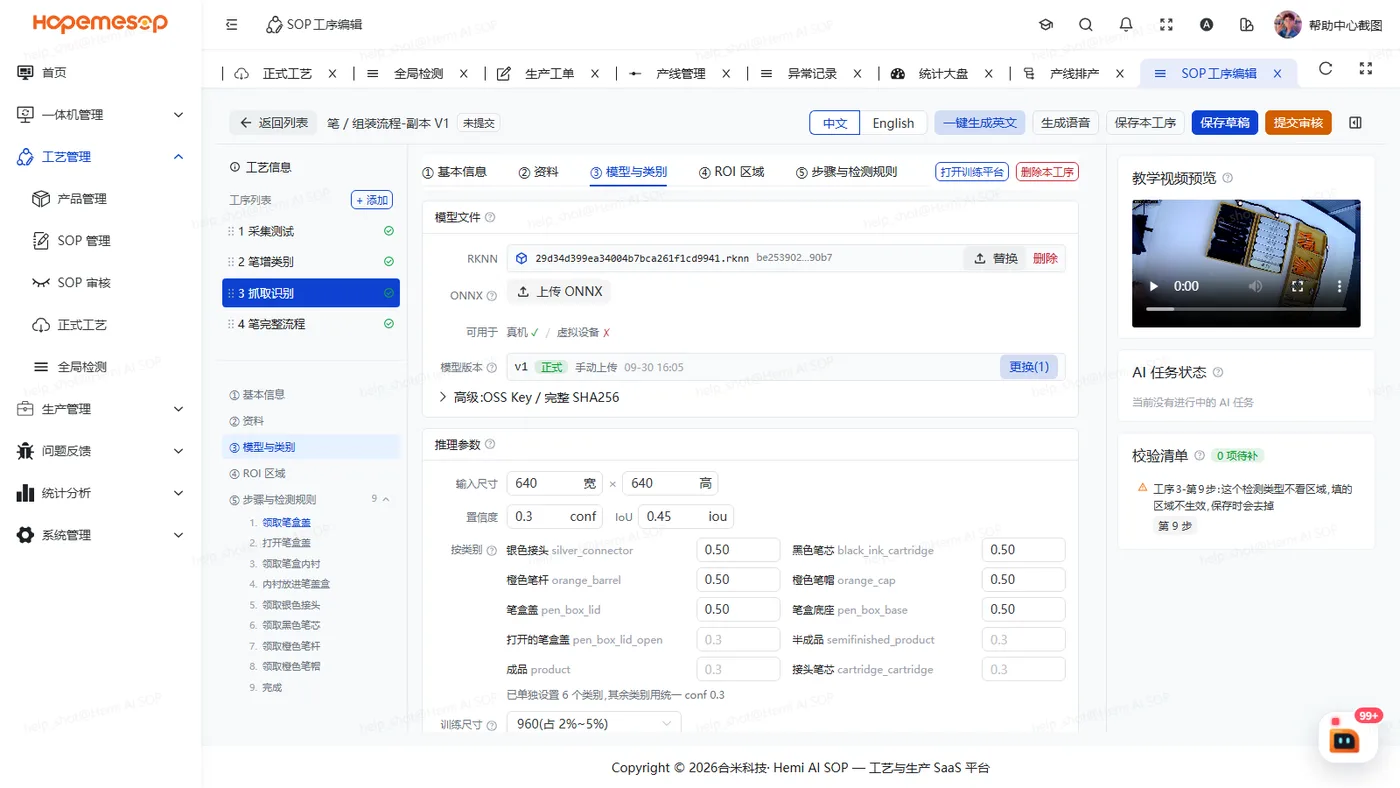
In the editor, select the operation and click the ③ Model & classes tab in the middle column.
Class table
The column headers are "标签名 / 中文名 / 英文名 / 检测短语(自动标注用)/ 描述" (Label name / Chinese name / English name / Detection phrase (for auto-labeling) / Description).
| Column | What to fill in |
|---|---|
| Label name | The English label used for model training and detection rules, for example box_closed. It must start with a lowercase letter and can only use lowercase letters, digits and underscores. If you change it, you must train again |
| Chinese name | The name shown in the admin console and in the workstation's Chinese interface. Required |
| English name | Shown in the workstation's English interface. If empty, the label name is shown |
| Detection phrase | Tells the AI what to look for during auto-labeling. An English phrase |
There is also a Description column: extra notes on what the part looks like and where it is.
For parts with easily confused numbers, write a clear description
In the description, say clearly how to tell them apart by eye.
Buttons on the table
- AI 补全检测短语 / 描述 (AI fill detection phrases / descriptions): fills only the empty cells and never overwrites what you entered. Check "参考教学视频" (Use teaching video as reference) for better results. It takes 1 to 3 minutes. Above the table you see "N 个缺检测短语或描述" (N missing detection phrases or descriptions).
- + 添加类别 (+ Add class), 清空自有类别 (Clear own classes) (asks you to confirm again).
Use global classes
Below the table you can select several classes shared across the whole company (hard hats, gloves and so on). They are read-only here. To change them, go to the Global detection classes page.
Training and counting settings
| Setting | Notes |
|---|---|
| Training size | 640 / 960 / 1280. The system suggests one based on how much of the image the smallest target takes up |
| Counting class | Which part this operation counts pieces by |
| Fixture class + fixture slots | Only takes effect when both are filled in |
| Model file | You can upload an RKNN or ONNX file by hand. Usually you don't need to; choose one under "训练版本" (Training versions) below |
Choose a training version
"训练版本" (Training versions) lists the versions trained on the training platform (test version / stable release, accuracy).
- Find the version you want.
- Click 使用此版本 (Use this version).
Once you click it, this version becomes the stable release and replaces the model in both the draft and the released process. The workstation syncs automatically. Choosing an older version is how you roll back.
For how to train a version, see Train and choose a model.