
Sign in and get to know the interface
The admin console is where process engineers build SOP processes, planners schedule production, and company admins manage accounts and devices. This page covers how to sign in, what each part of the screen does, and which pages each role should read first.
Who you are and which pages to read first
| You are | Read mainly |
|---|---|
| Process engineer (builds SOP processes, sets up detection rules, trains models) | The "Before you start", "Build a process" and "Train, review, release" groups. For the training platform, see Training platform |
| Production planner / team leader (creates work orders, schedules production, checks alarms and reports) | The "Before you start" and "Production management" groups |
| Company admin (creates accounts, manages devices) | "Before you start", plus Users and roles and Devices |
- For how to use the workstation, see Workstation. To decide which rule to use before you start, see Choose a detection type.
- The screenshots use data from a test company. Customer names have been replaced with "示例客户" (Sample customer). The left menu in the screenshots has a few more items than a normal company account. Go by what you see on your own screen.
Sign in
- In your browser, open the admin console at open.hm-sop.com.
- Fill in 公司代码 (company code), 账号 (account), 密码 (password) and 验证码 (captcha). The captcha is an image of a math problem. Enter the answer.
- Click 登录 (Sign In).
5 wrong passwords in a row lock the account
The account is locked for a while. If you forgot your password, ask your company admin to reset it. See Manage users and roles.
Home page
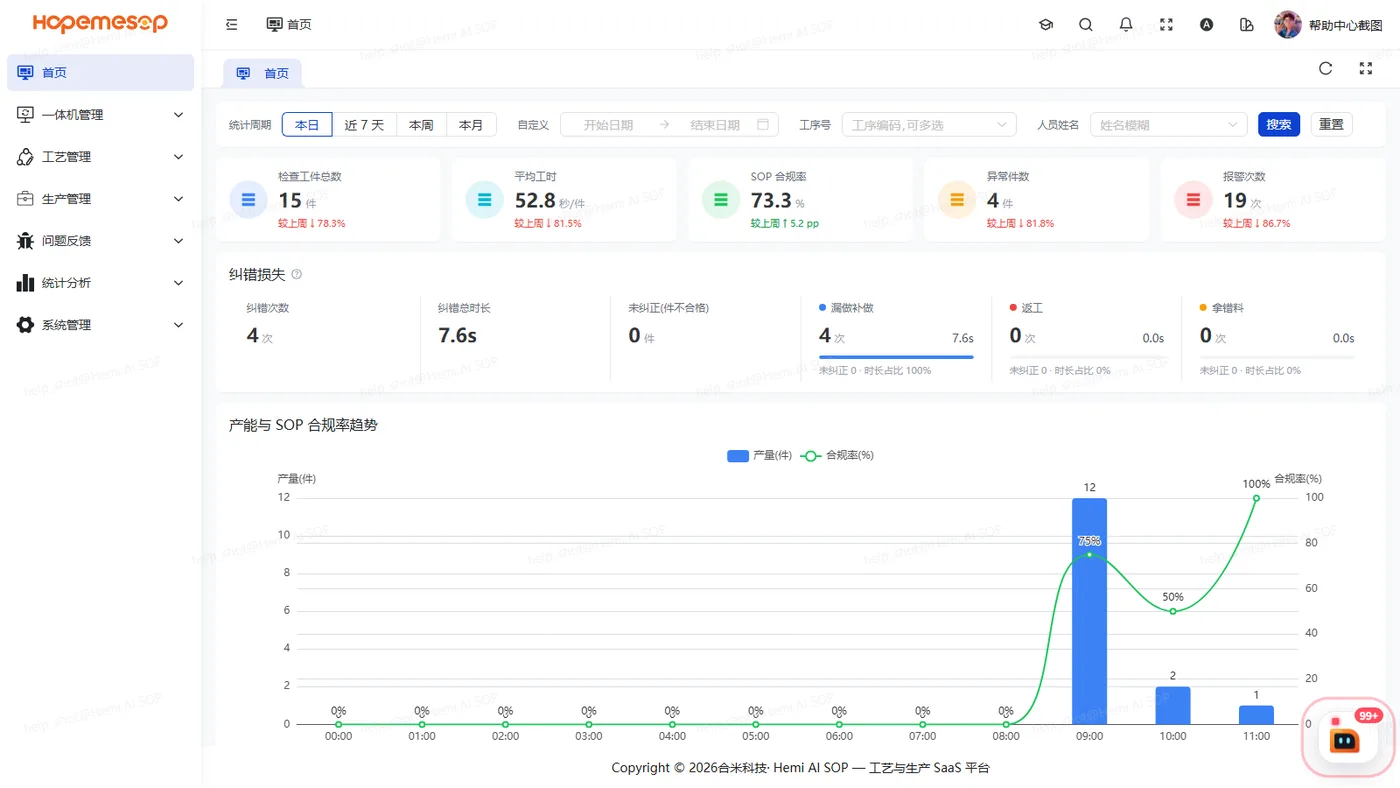
The home page shows your company's production overview: pieces inspected, average cycle time, SOP compliance rate, abnormal pieces, alarm count, correction losses and the capacity trend.
Left menu
It includes workstation management, Craft (process management), production management, statistics, system management and more. Each person sees a different menu depending on their permissions. See Understand what each account can see.
Top bar
- Onboarding guide (graduation cap icon): 8 steps to "set up a production line from scratch". Each step has a 去操作 (Go) button that takes you straight to the right page. The first time you use the console, open it and follow along.
- Search: you can search for pages and for functions. For example, type "删除" (delete) or "启动" (start). It lists functions such as "删除产线" (delete production line) and the page each one is on. Click one to jump there.
"小合" (Xiaohe) in the bottom-right corner
Xiaohe is the AI detection assistant. It only shows if you have permission. The red dot on the icon is the number of your company's alarms from the last 7 days that nobody has confirmed. Xiaohe can:
- Answer questions, for example "为什么这个工序提交不了审核?" (Why can't this operation be submitted for review?) or "哪个类别识别最差?" (Which class is detected worst?);
- Diagnose alarms: why an alarm went off and whether it is a false alarm;
- Suggest changes to a draft as a card. Click 采纳并写入草稿 (Accept and write to draft) to apply the change to the process draft directly;
- Merge or rename detection classes: first click 预览影响 (Preview impact), then 确认执行 (Confirm). You can 回滚 (Roll back).
Xiaohe's answers are suggestions
Check them yourself before you change a process.