
Manage released processes
An approved SOP process is locked as a released process, and that is what workstations use. This page covers what you can do with a released process, disable it, return it to draft, and view the teaching video replacement history.
Open 工艺管理 (Craft) › 正式工艺 (Released process).
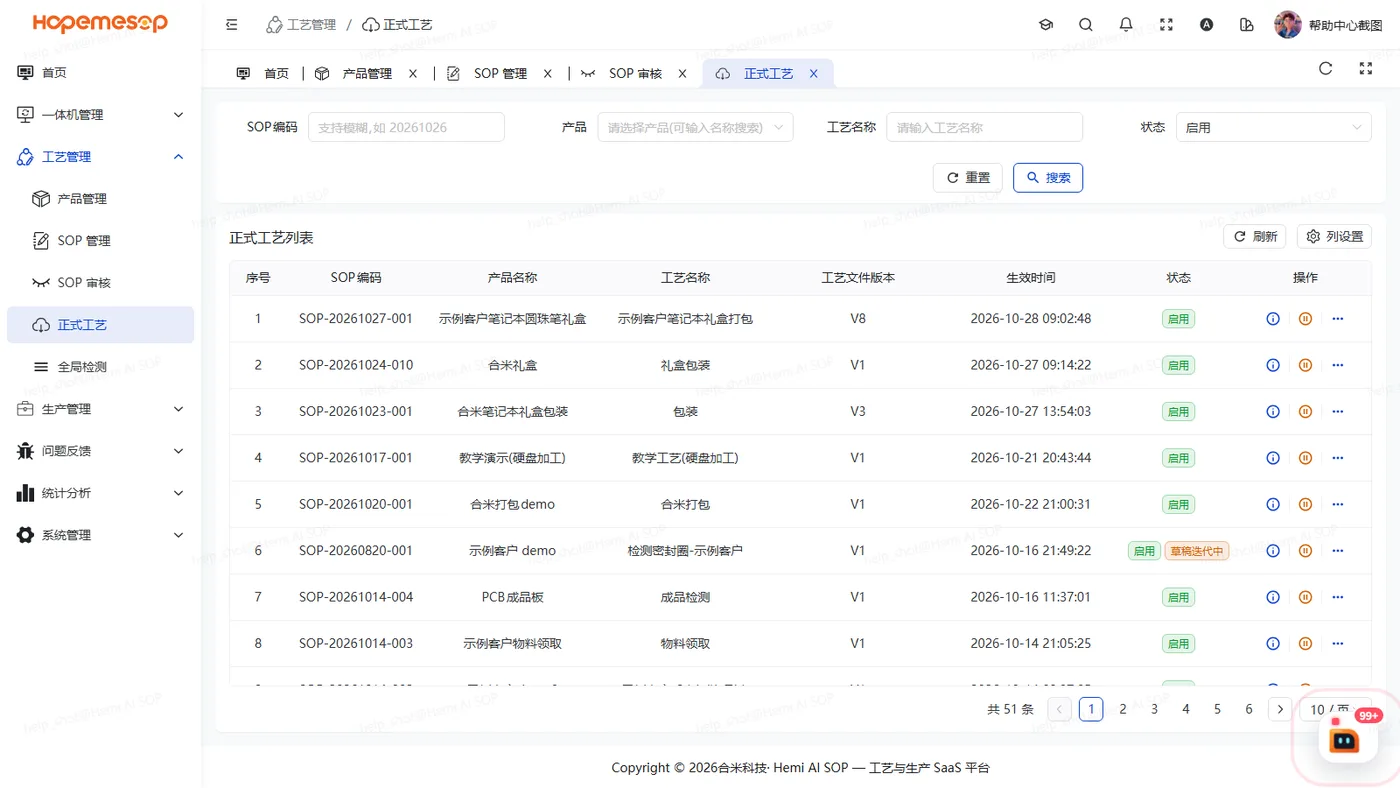
Here you can only 启用 (Enable) / 停用 (Disable), 退回草稿 (Return to draft) and view 详情 (Details). You cannot add or delete.
Disable
Click 停用 (Disable). The confirmation dialog says "…一体机也会移除该工艺(正在生产的做完本轮后再移除)" (…the workstation will also remove this process (if it is in production, it is removed after the current round)).
Once disabled, this SOP process can no longer be used in scheduling.
Return to draft
To change a released process, you must first return it to draft.
- Click 退回草稿 (Return to draft).
- A dialog asks 去编辑 (Edit) / 留在本页 (Stay on this page). Click 去编辑 (Edit) to jump straight to the draft.
- After making changes, submit for review again. See Submit and review a process.
Returning to draft does not stop the line
After you return it to draft, the released version stays live and the line keeps running the old version. When the new review is approved, it overwrites the original row. Station bindings, schedules and training projects are not interrupted.
- You cannot return it to draft while a review is in progress.
Teaching video replacement history
详情 (Details) has a "教学视频替换记录" (Teaching video replacement history). If a released process's teaching video was replaced directly on a workstation, a row is recorded here: time, operation, source "一体机 SN(账号)" (workstation SN (account)), old → new file.
- Each row has 恢复旧视频 (Restore old video). Clicking it switches back to the old video and syncs it to all workstations.
After a video change, the teaching clip times may not match
If the start and end times of the steps' teaching clips no longer match, mark them again on the platform.