
Draw ROI zones
An ROI zone is a detection zone drawn on the camera image. Step rules and the material prep area both use them. This page covers how to get a reference frame, how to draw zones, and when to set up an inference zone and per-piece mode.
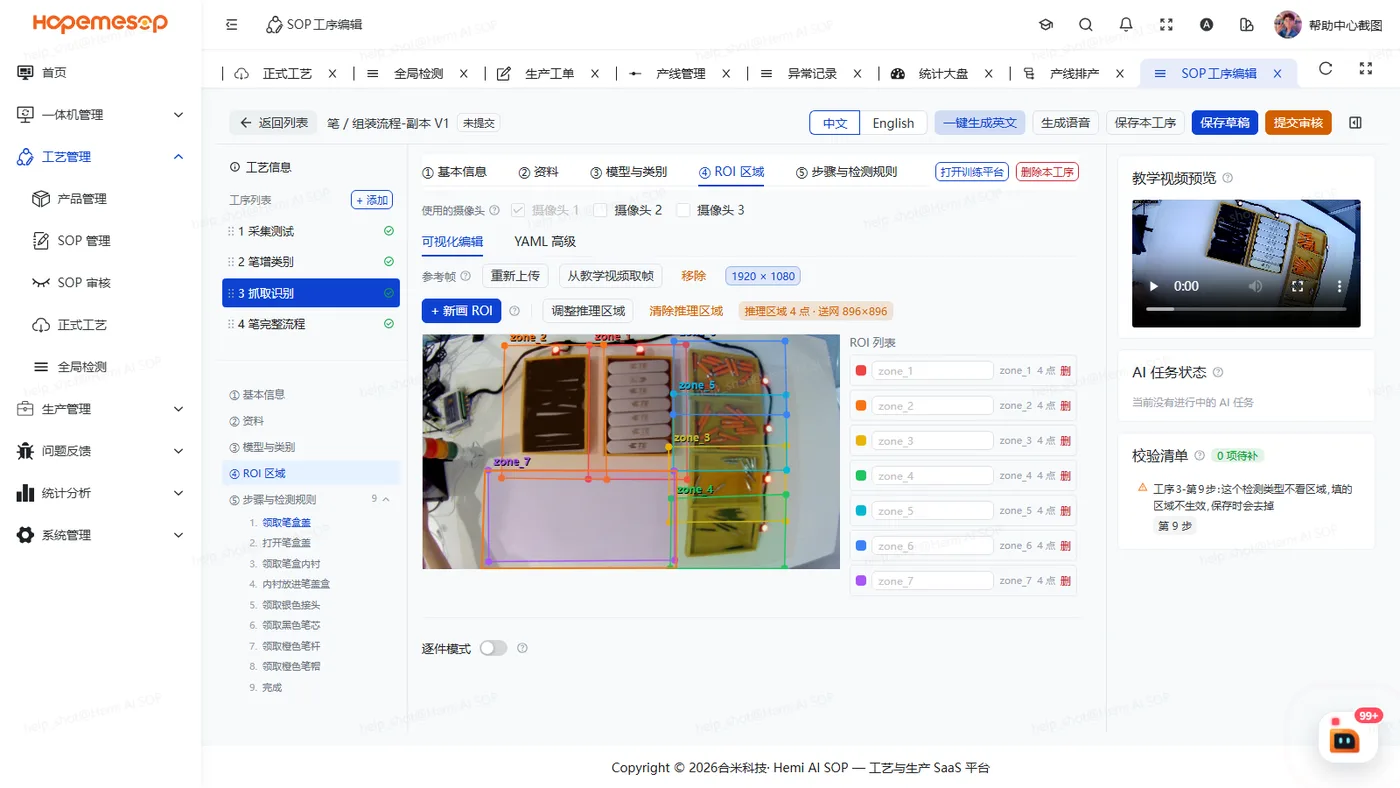
In the editor, select the operation and click the ④ ROI zone tab in the middle column.
Steps
- First you need a reference frame: click 选择图片 (Choose image) to upload one, or click 从教学视频取帧 (Grab frame from teaching video) and drag the progress bar to find the frame. You can fine-tune by ±1 frame or ±1 second.
- Draw the zone:
- Fill in the zone "名称" (Name). Chinese is allowed. The number is generated automatically.
- Draw a polygon on the image: click to add a point, double-click or press Enter to finish, right-click to undo the last point.
- Inference zone (optional): draw one when the parts are small. Only this part of the image is sent to the model.
- Per-piece mode (optional): set it up when there are several workpieces in one image and each must be judged on its own.
Notes
After drawing or changing the inference zone, submit for training again
The model learns based on this crop. For submitting for training, see Train and choose a model.
- In per-piece mode, an anchor class that is not among the model classes is marked red. For how per-piece mode works, see Use per-piece mode.
- The "对应画面区域" (matching image zone) of the material prep area must be drawn here first. See Fill in operation basics.