
Fill in operation basics
You build SOP processes in the full-screen editor. This page covers the three-column layout, the difference between the two save buttons, how to fill in ① Basic info (including the material prep area), and how to use the checklist in the right column.
Open the editor
In the 工艺管理 (Craft) › SOP 管理 (SOP Drafts) list, click 编辑 (Edit) in the row to open the full-screen editor.
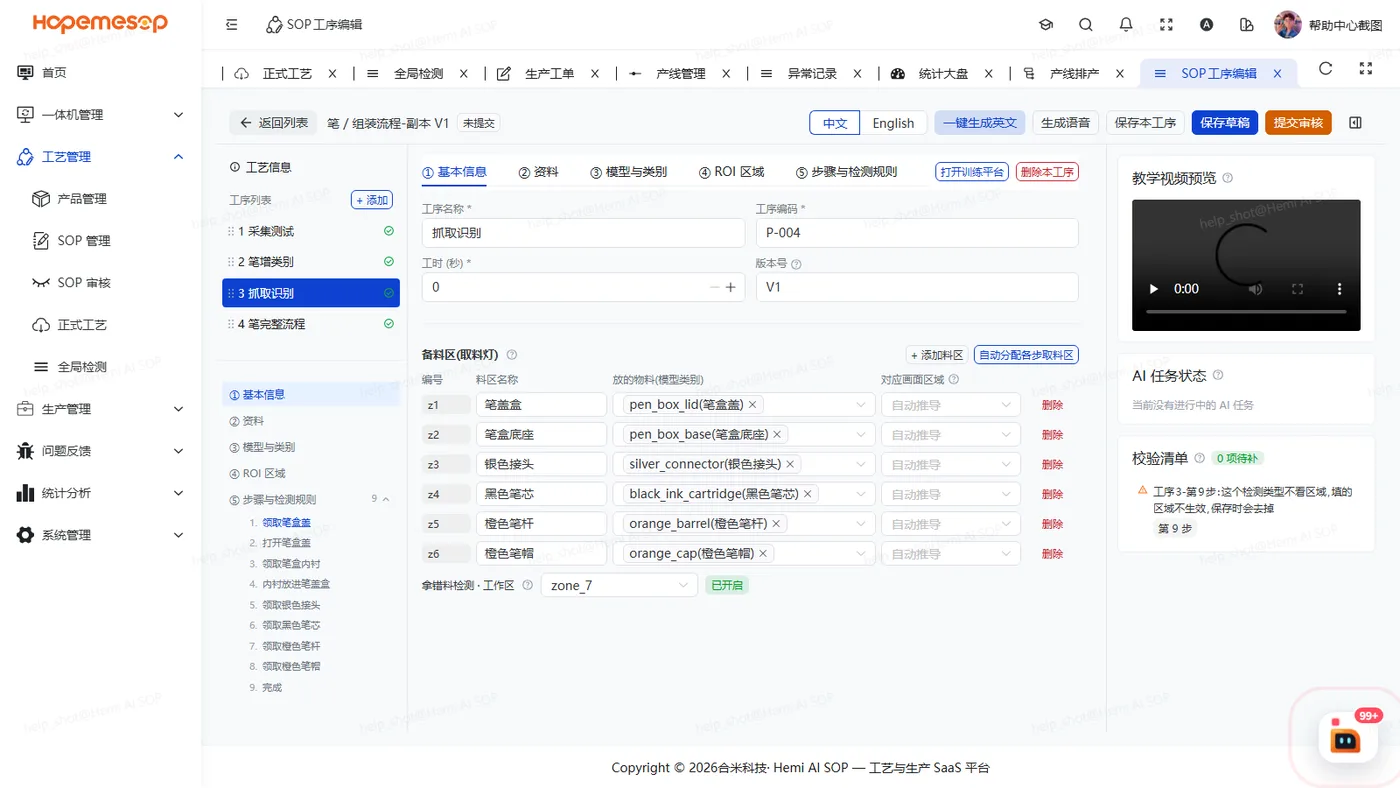
Three-column layout
- Left column: "工艺信息" (process info) and the list of operations. You can drag operations to reorder them. The icon in front of each operation means:
- Blue spinner: an AI task is running;
- Orange exclamation mark: there are checklist problems;
- Green check mark: everything is in place.
- Middle column: when you select an operation, it has five tabs: ① Basic info ② Materials ③ Model & classes ④ ROI zone ⑤ Steps & detection rules.
- Right column: teaching video preview, AI task status and the checklist (see the last section of this page). When the checklist is all green, it shows "可提交审核" (Ready to submit for review). Fixing things in the order it lists is the easiest way.
- Top bar buttons: 保存草稿 (Save draft), 保存本工序 (Save this operation), 提交审核 (Submit for review), 打开训练平台 (Open training platform), 删除本工序 (Delete this operation), 一键生成英文 (Generate English).
Don't mix up the two save buttons
| Button | What it does | Limits |
|---|---|---|
| 保存草稿 (Save draft) | Saves the whole SOP process | Always available |
| 保存本工序 (Save this operation) | Saves only the current operation | Only in draft status, and only after this operation has been saved at least once |
When several people edit one large SOP process at the same time, use 保存本工序 (Save this operation) to reduce conflicts.
Generate English
Automatically translates the names and descriptions of the process, operations and steps into English, with a progress bar. After it finishes, the workstation's English interface can use them.
① Basic info
- Operation name, code, labor time and version. The code is generated automatically as
P-<number>and must be unique within the SOP process.
Material prep area (pick lights)
Set this up only if the station has pick lights, or if you want to detect "拿错料" (wrong part).
- Click + 添加料区 (+ Add pick area). The number is generated automatically. Fill in the name and select one or more materials kept in this pick area.
- Choose the matching image zone: which zone in the camera image this material bin is in. You must draw it first in ④ ROI zone. After a wrong-part alarm, the workstation uses it to tell which bin the part was returned to. If you leave it empty, the workstation works it out from the zone the hand enters in the "领取该物料" (take this material) step.
- Click 自动分配各步取料区 (Auto-assign pick areas to steps). It works out each step's pick area from the step where each material first appears. Steps that already have a pick area ask you to confirm again.
- An empty pick area on a step = this step takes no material, and all pick lights turn red.
- Wrong-part detection: once you choose a work area in the dropdown, it shows "已开启" (On).
Checklist (right column)
The checklist shows, in real time, the problems that would block a submission for review. Click a problem to jump straight to where it needs fixing.
| What the checklist says | How to fix it |
|---|---|
| 工序N「X」第 2、3 步用了零件检测规则(类别:…),但工序还没有模型 (Operation N "X" steps 2 and 3 use part detection rules (classes: …), but the operation has no model yet) | Click 去送训 (Go to training) / 打开训练平台 (Open training platform) to train first. If it has already been trained, click 去选模型 (Choose model) |
| …但工序还没有选用模型:已训练出 v203(测试版,mAP50 0.840),点「选用 v203」即可 (…but the operation has no model chosen: v203 has been trained (test version, mAP50 0.840), click "Use v203") | Click 选用 v203 (Use v203) → confirm. It shows "已选用 v203:草稿和已发布的正式工艺都已更新,可以提交审核了" (v203 is now in use: both the draft and the released process have been updated, you can submit for review now) |
| 工序N「X」的 M 个步骤都还没配检测规则,一体机无法判定 (None of the M steps of operation N "X" has a detection rule, so the workstation cannot judge them) | Click it to jump to ⑤ and give at least one step a detection rule (hand actions, zones and pick from cell all count) |
| 工序N「X」还没有教学视频 (Operation N "X" has no teaching video yet) | Click it to jump to ② and upload a teaching video (you can also record one on the workstation's sampling page) |
If you force a submission, the top of the screen shows "提交审核会被驳回:…" (The review submission will be rejected: …). 保存草稿 (Save draft) is never blocked.