
Sign in and get to know the home screen
How to sign in after power-on, what the sign-in messages mean, and what each area of the home screen shows.
In short
- Enter your employee ID and password, then press Sign In.
- If it says "Incorrect account or password", enter them again. If it says "Hardware info does not match the platform record", do not keep retrying; call a technician.
- When the network is down, you can still sign in with an account that has signed in on this machine before.
Sign in
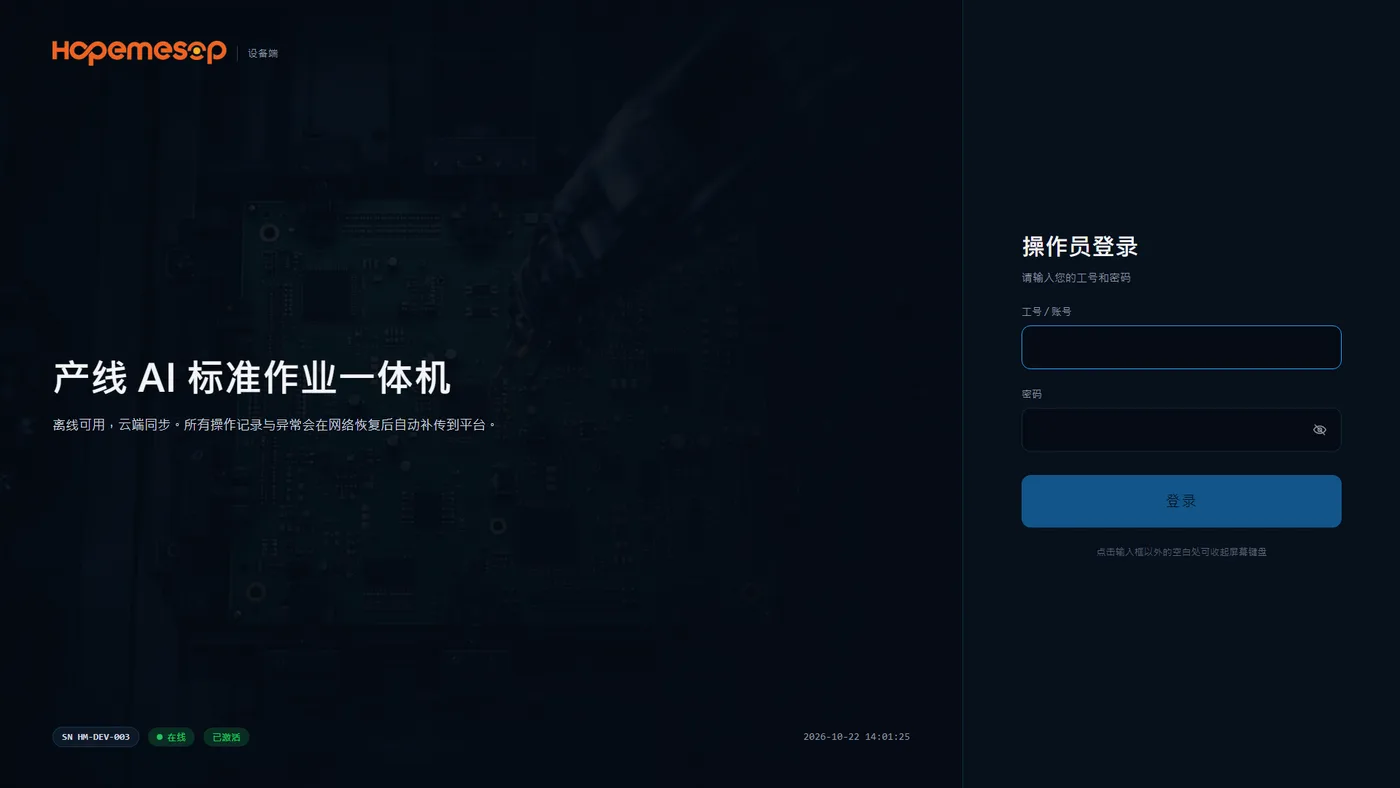
- After power-on, the screen stops at "Operator sign-in".
- Enter your employee ID in "Employee ID / Account" and your password in "Password", then press Sign In. The eye icon at the right of the password box shows or hides the password.
- If the on-screen keyboard is in the way, tap a blank area outside the input box to close it.
- At the bottom left you can see this machine's SN, "Online" and "Activated".
Common messages when signing in
| Message | Meaning | What to do |
|---|---|---|
| Incorrect account or password | You typed the wrong employee ID or password | Enter them again. If you forgot your password, ask your team leader to reset it on the platform |
| Offline now; you can sign in with an account synced earlier | The network is down | Accounts that have signed in on this machine before can sign in as usual |
| Device transferred to a new company; sign in with a new company account | This machine has been assigned to another company | Sign in with an account of the new company |
| This machine's hardware info does not match the platform record… | The machine's hardware does not match the platform record | Do not keep retrying; call a technician |
Suddenly sent back to the sign-in screen while working
If the screen shows red text "Device transferred to a new company…", the machine has been assigned to a new company. Just sign in with a new company account.
What the home screen looks like
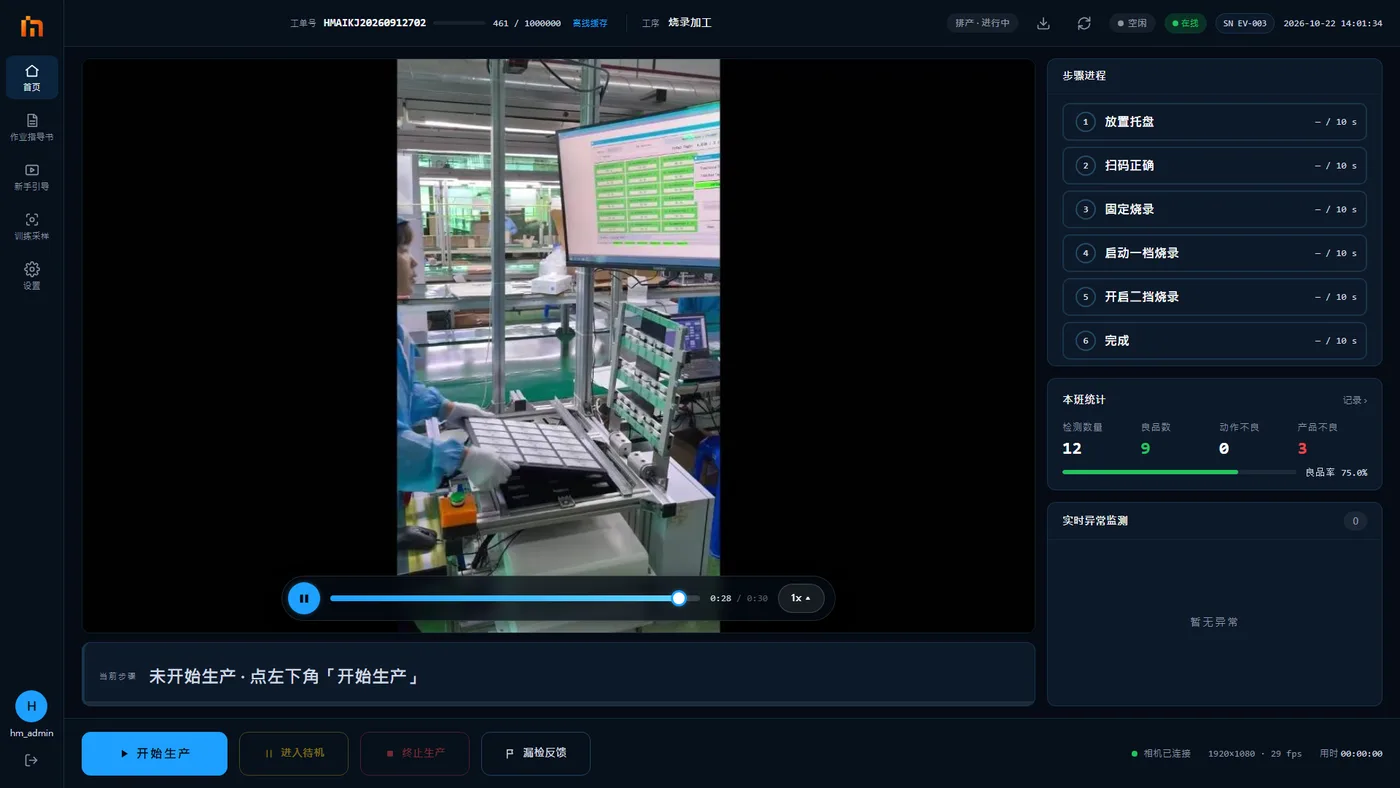
Left sidebar: Home, SOP Docs, Guidance, Settings. If your company has the training platform enabled, there is also Training Sampling. At the bottom is your name; tap it to sign out.
Top row (header):
- Left side: production line › station › product, the work order number, the finished count and progress bar (for example 12/100), and the current operation. When a station has several work orders scheduled, there is also a Switch button.
- Right side: schedule status (Not started / In progress / Paused / Completed), the sync button, run status (Idle / Running / Standby / Practicing), network (Online / Degraded / Offline), the last 6 digits of the SN, and the time.
Large picture in the middle: the live camera view, with boxes drawn around the parts the machine recognizes. A bar under the picture shows which step to do now.
Three panels on the right:
| Area | What it shows |
|---|---|
| Step timeline | How many steps this operation has, which step you are on, and how long each step took. See Read the step timeline |
| Shift stats | Inspected count, good count, action defects, product defects and yield. Tap a number to see details. Records › at the top right opens the Records page |
| Reference image / Live abnormals | Two tabs: the reference image shows how this step should look, see View reference images; Live abnormals is the alarm list, see Read and handle alarms |
Buttons at the bottom left: Start, Standby, Abort, Missed alarm.
What the colors mean
| Color | Meaning |
|---|---|
| Blue | Current, can be tapped |
| Green | Passed, online |
| Yellow | In progress, standby, reminder |
| Orange | Needs rework, correction |
| Red | Error, alarm |