
Train, verify and release a model
Once the footage is uploaded and the class list is right, start training on the Training tab, verify against real parts when it finishes, and release when it is accurate. Finally, how to check records on the History tab.
In short
- On the Training tab, press Start training. It takes from tens of minutes to an hour or two; you can leave and go to work.
- When training is done, press Verify model on the version, place the parts under the camera one by one, and check whether the checklist shows them all as "Recognized".
- If it is accurate, press Release this version → Release. When you see a green "Match", the machine is using it.
Start training
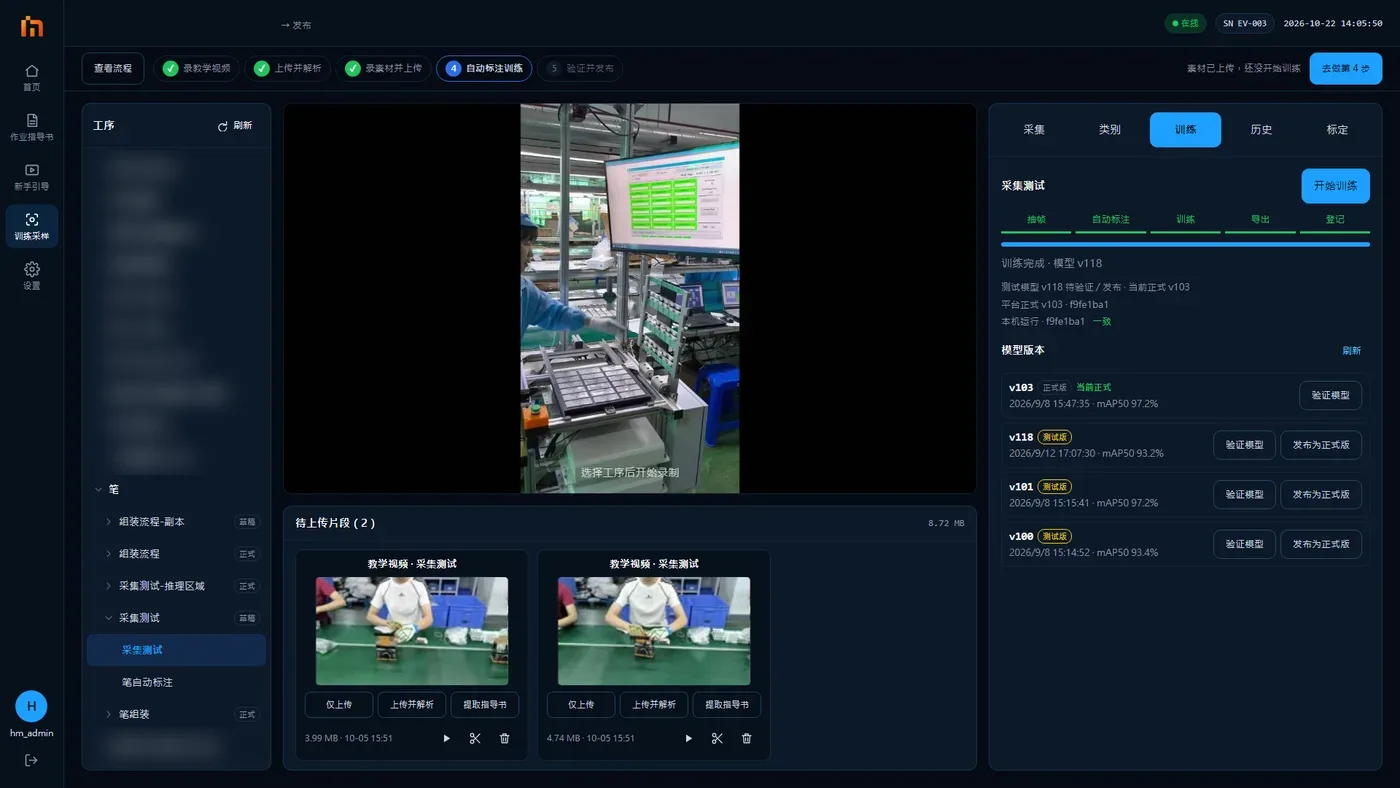
Once all footage is uploaded and the class list is right, go to the Training tab and press Start training.
- If some clips are not uploaded yet, or not a single clip of this operation has been uploaded successfully, "Upload the footage first" pops up. Press Go upload to go back and upload.
- If this operation has mixed-class footage and some parts are missing reference frames, "Mixed-class footage missing reference frames" pops up first:
- Add material first (recommended): go back, record a separate clip for each missing part, upload them, then come back to train;
- Dispatch anyway: train anyway, but the parts missing reference frames will probably not be labeled in the mixed footage.
- After you press the button, it turns gray and shows "Submitted for training, waiting for the training side to accept…". Then it moves forward stage by stage: extract frames → auto-label → train → export → register.
- How long it takes: from tens of minutes to an hour or two, depending on how much footage there is. You can leave this page and go to work; progress is also shown at the bottom of the "Capture" tab.
- When done, it shows "Training complete · model vN". If it shows "Training failed", press Train again. If it fails again, ask a technician.
Verify: try it out
The Training tab has a "Model versions" list. Both test versions and the stable release are listed, tagged "Current stable" or "Verifying", with the training time and accuracy (mAP50). You can press "Verify model" on any version at any time to try it.
Make sure the machine is idle (it cannot be pressed while producing; it says "Cannot verify a test model during production").
Press Verify model on the version you want to try. The first time, it has to download; wait for "Test model loaded; check recognition against real parts".
Watch the picture right on the Training tab (boxes are drawn on it now). Place the parts under the camera one by one, at several angles and positions.
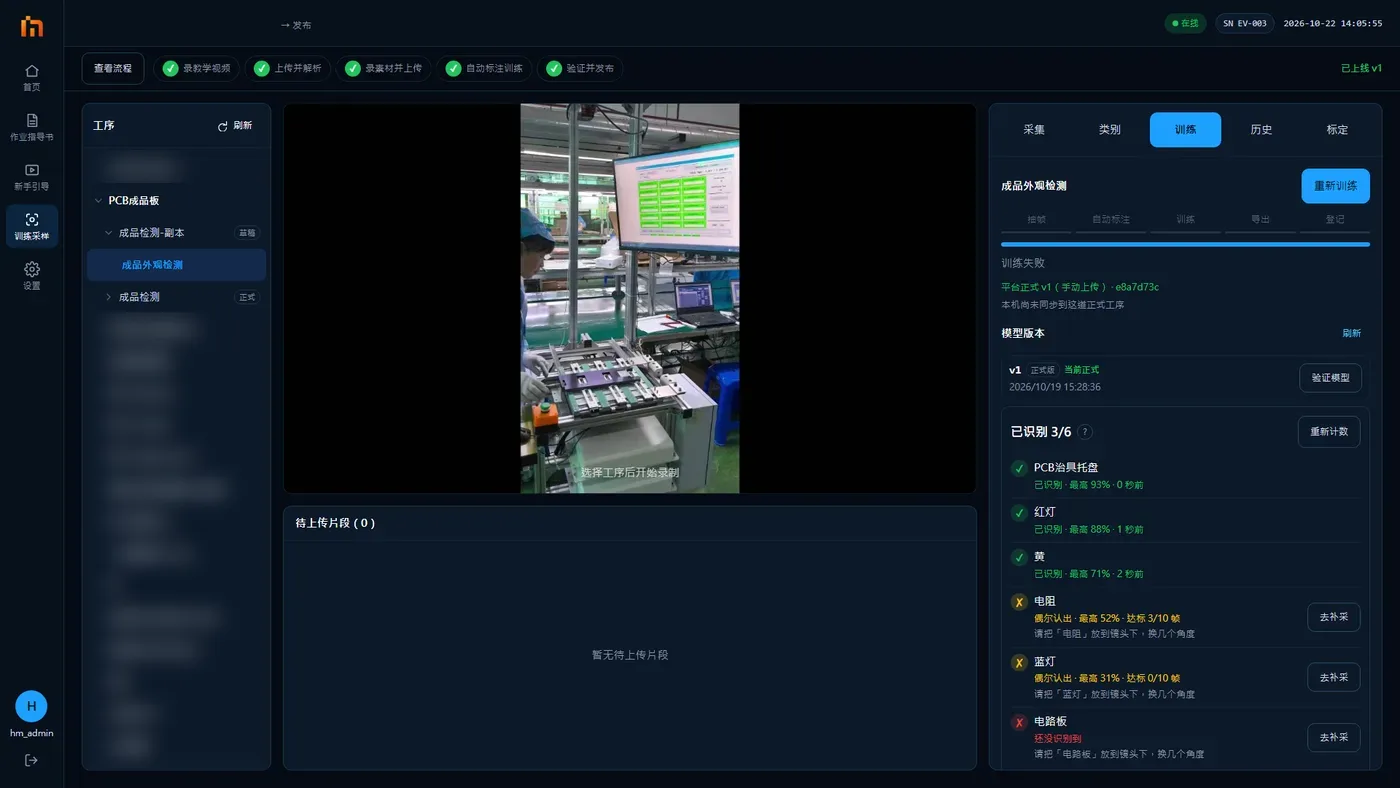
Look at the checklist on the right, "Recognized x/y", one row per part:
Display Meaning Recognized · best N% · x s ago It recognizes the part Sometimes recognized · best N% · a/b frames met Recognized on and off; not stable yet Not recognized yet Never recognized so far. Below it says "Place 'part name' under the camera and try several angles" To start counting again after changing the setup, press Recount.
When done, press End verification. The machine goes back to its original model.
Not accurate? Press "Collect more"
A row that is not recognized, or not recognized steadily, has Collect more. Pressing it jumps to the Capture page with part footage for this part already selected. Record more clips and take more snapshots of it, then upload and train again.
Release
When verification looks good, press Release this version on that version. The confirmation says "The current stable release vM will be replaced by vN; released SOP processes will be hot-updated to the devices automatically". Press Release.
- If you press release while some parts have not been verified, "Some classes have not been verified… they may not be recognized on site after release" pops up. Press Keep verifying to go back and keep trying; if you are sure it is fine, press Publish anyway.
- If this version has never been verified, there is an extra reminder: "This version has not been verified yet. It is best to press 'Verify model' and check it against real parts first".
- Pressing release on an older version rolls back to that version (use this when a new version does not work well).
- After release, the Training tab shows two lines, "Platform stable vN" and "Running on this device". A green "Match" after them means the machine is using it. If it shows a red "Pending sync", press Sync to device.
If "Release will replace a manually uploaded model" pops up, do not press yet
It means a technician placed a model manually before. Check with a technician before releasing.
History tab: check records
Everything you uploaded is on the History tab. You can filter by All / Global / Teaching / SOP / Part / Error sample / Training. For a row in red "Failed", tap that row to see the full failure reason, the file, duration and time.