
Fix a blocked camera or wrong picture
When the camera is blocked, the picture is too choppy, or the lighting is poor, the workstation shows a full-screen notice. This page explains how to handle each one.
In short
- Move whatever is blocking the camera, then press Issue fixed, resume work.
- Once the picture is back to normal, the machine also carries on by itself.
- If you cannot fix it right away, you can press Ignore for now, but tell your team leader as soon as possible.
Three situations
When the camera is blocked, the picture is too choppy, or the lighting is poor, a full-screen notice pops up. Its large text says:
| Situation | Large text |
|---|---|
| Camera blocked | Move whatever is blocking the camera |
| Choppy picture, frame rate too low | Check the camera connection |
| Cannot see clearly overall | Check the lighting and camera angle |
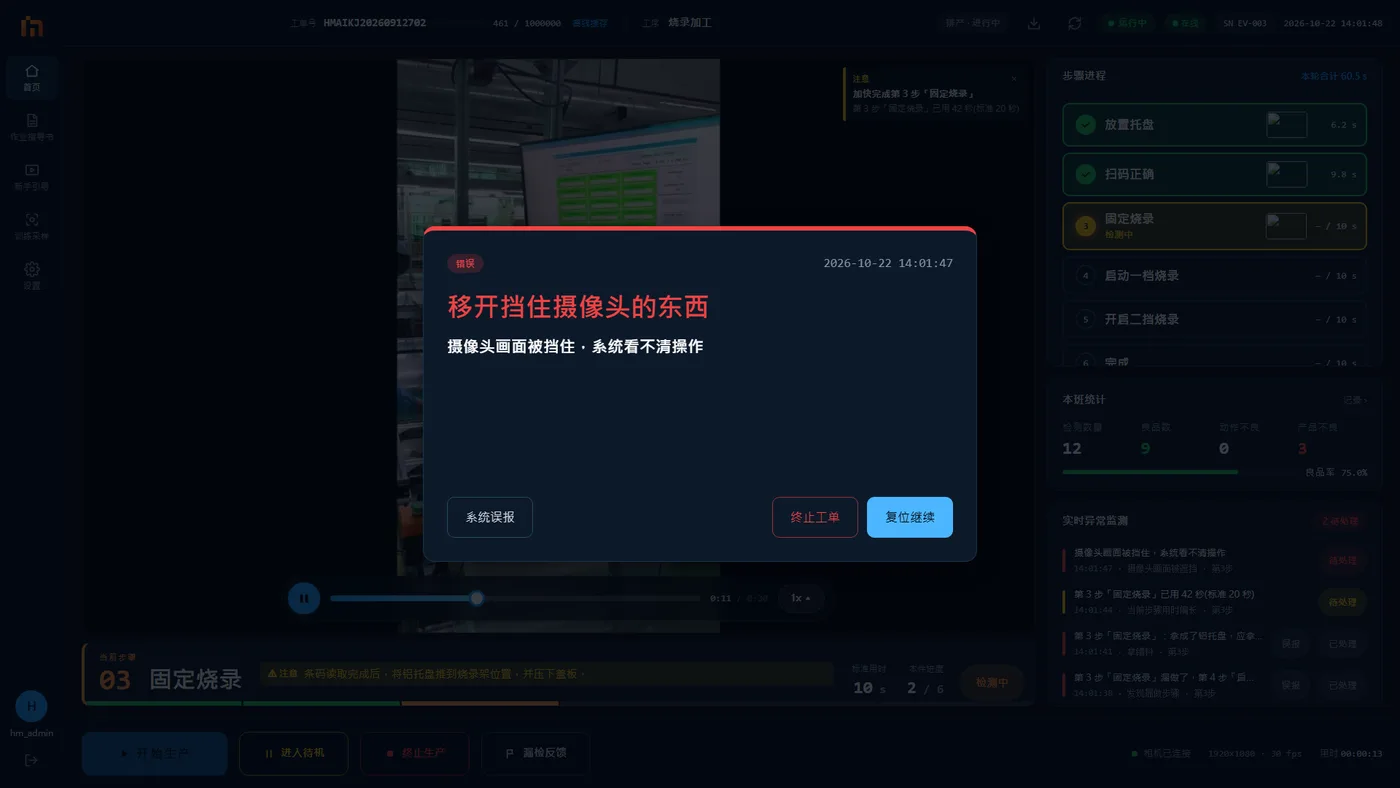
First an alarm dialog like the one above pops up. As with other alarms, read it and press Continue to close it. At the same time, a semi-transparent notice covers the video, and the machine pauses detection. The notice has two buttons: Issue fixed, resume work and Ignore for now.
What to do
- Do what the large text says: move whatever is blocking the camera, or check the camera connection, lighting and angle.
- Press Issue fixed, resume work.
- You can also skip pressing it: once the picture is normal and stays so for a few seconds, the machine shows "Scene recovered, work resumed automatically", and this piece starts again from step 1.
If you cannot fix it right away, you can press Ignore for now, but tell your team leader as soon as possible.
Still shown during redo
While "Redoing", other actions do not raise alarms, but notices like a blocked camera still pop up.