
Redo a missed step
If you finished the last step but an earlier step was skipped, the piece is not finished. This page explains how to redo it, and how to end the round if you cannot.
In short
- When "N steps are not finished" pops up, press Go complete and redo the steps listed on the orange bar.
- Once they are done, the piece is counted automatically and the orange bar disappears.
- If you really cannot redo them, press End this round → Confirm end round. This piece is recorded as abnormal; hand it to your team leader.
Last step done, but earlier steps are missing
If you finished the last step but an earlier step was skipped, this piece is not finished. The machine waits for you to redo it.
If you take new parts and start the next piece at this point, this pops up:
N steps are still not finished. Redo them before starting the next round of this operation Buttons: Go complete / End this round
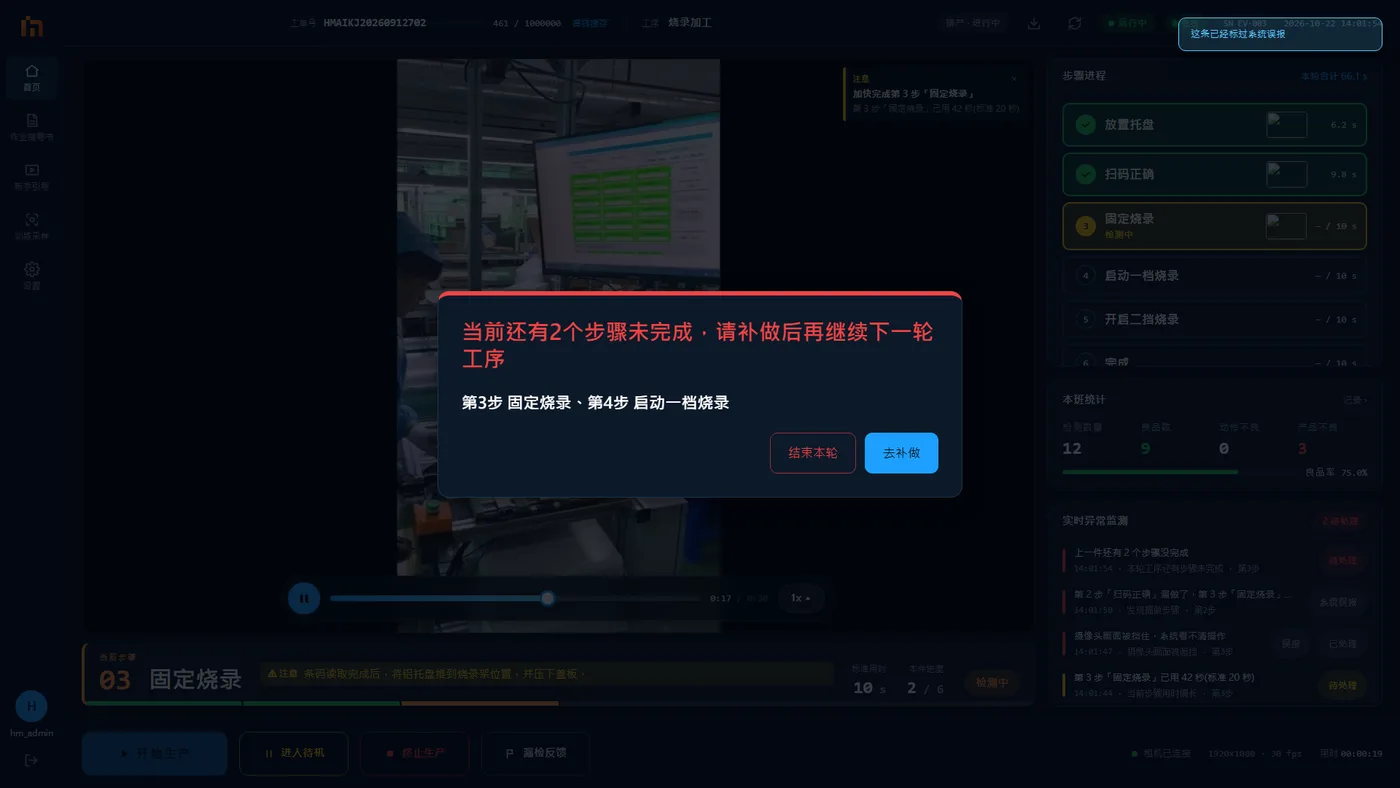
Press "Go complete"
- The machine enters "Redoing": an orange bar appears above the step timeline, "Redoing: still missing step 3 …, step 4 …". Each step you finish drops off the list.
- Redo the steps as listed. While redoing, the machine only checks whether these steps are done right. Other actions do not raise alarms or pop-ups (notices like a blocked camera still appear).
- Once all the missing steps are done, this piece is finished and counted automatically, the orange bar disappears, and you go on to the next piece.
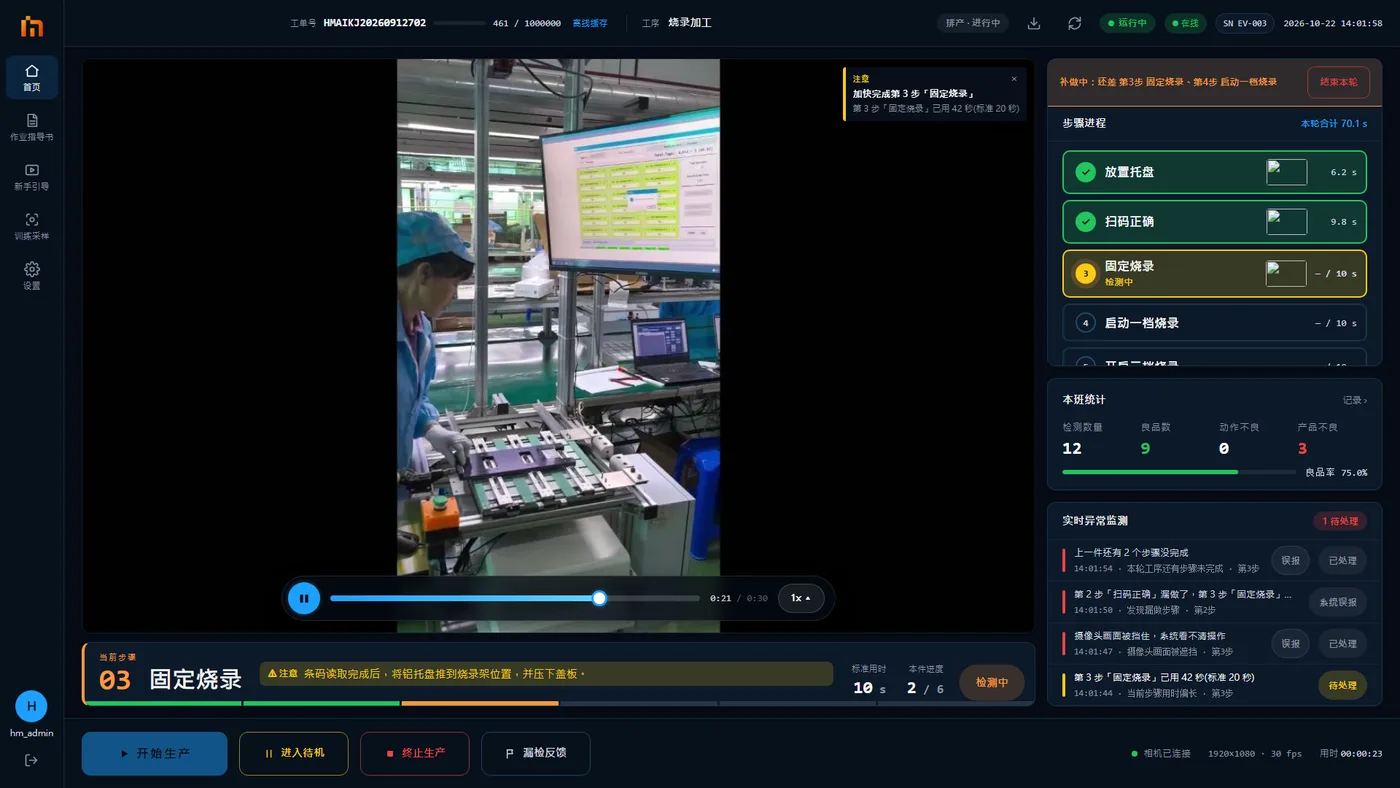
"Redoing" does not go away
It means the machine has not yet recognized the step you need to redo. Do that step again, and move your hands away so the machine can see.
Cannot redo: press "End this round"
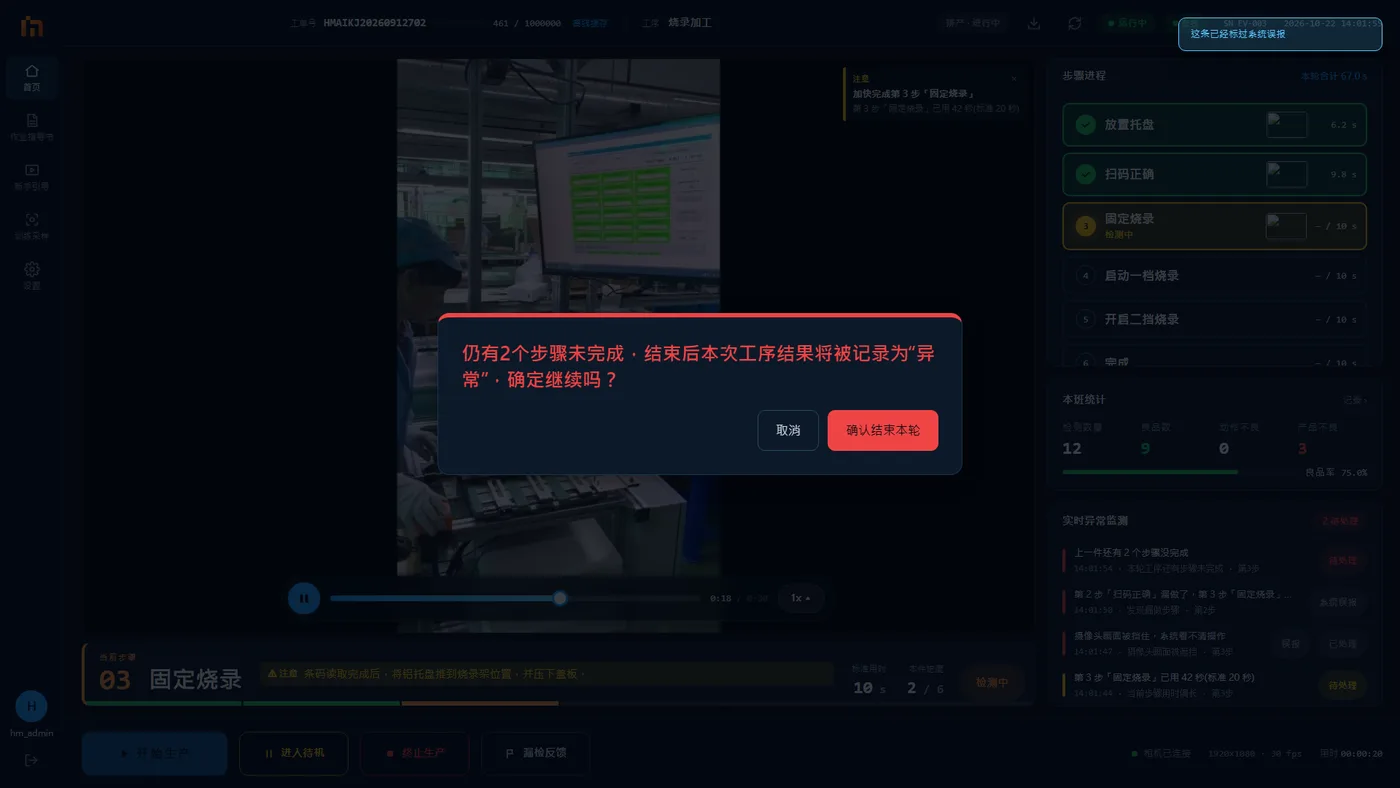
If the part is broken and you really cannot redo the step, press End this round (it is in the pop-up and also at the right of the orange bar).
It asks once more: "N steps are still not finished. If you end now, this operation result will be recorded as 'abnormal'. Continue?"
- Press Confirm end round: this piece is recorded as abnormal (failed) and the next piece starts. Hand this piece to your team leader.
- Press Cancel: go back and keep redoing.
Redo or repeat a single step
Even before you reach the last step, you can press these directly in the step timeline:
- Do it now on the right of a red "Skipped" step;
- Redo step on the right of a red "Not passed" step.
The step changes back to "Detecting", and turns green once done.