
Record footage
Three ways to get footage: start recording, take a snapshot, or import a file. This page explains how to use each, and how to record good footage.
In short
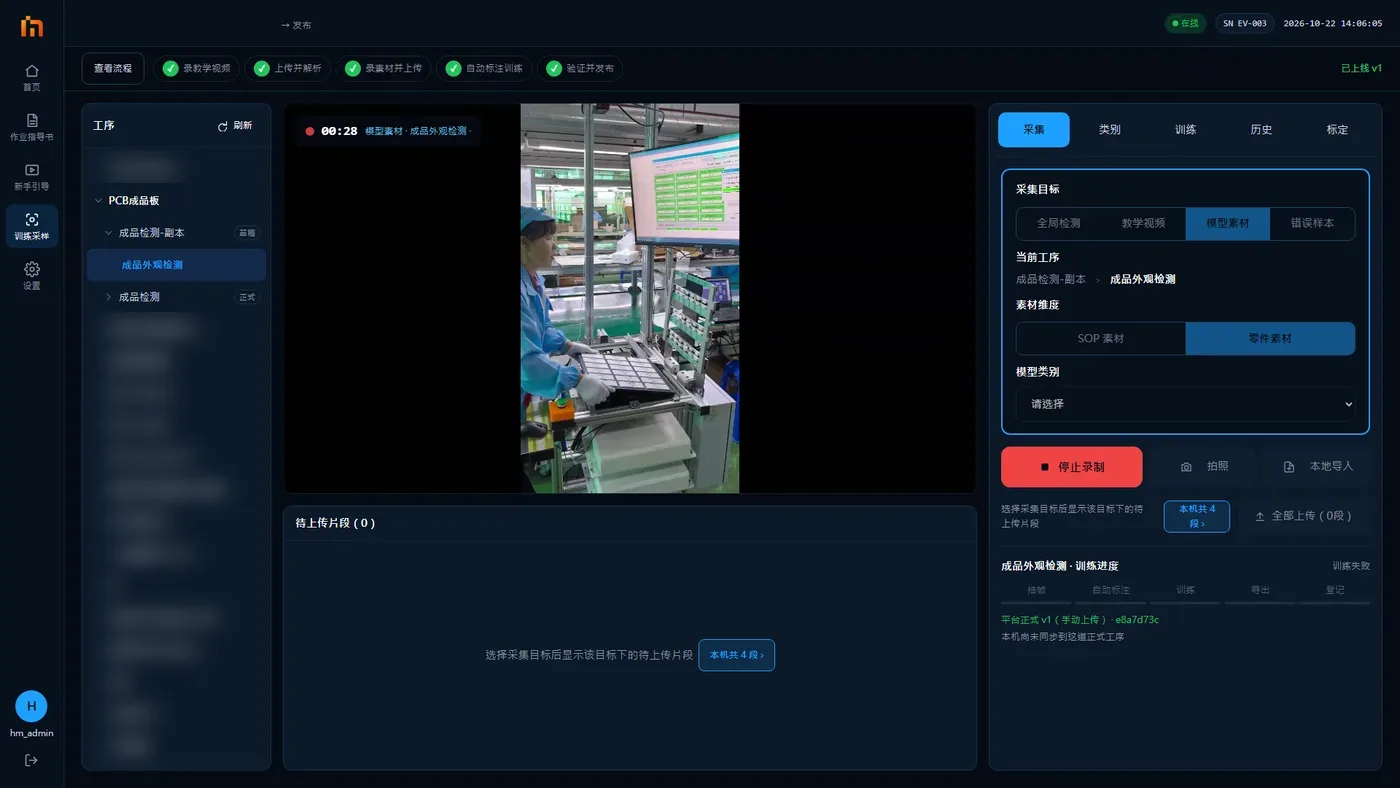
- Press Start Recording → work as usual → press the red Stop Recording.
- Do not leave this page while recording; leaving stops the recording automatically.
- For videos shot on a phone, use Import file. Hold the phone sideways.
Three buttons, three ways to get footage.
Start recording (used most often)
- When a station has several cameras, buttons "Camera 1 / Camera 2 …" appear above the picture. First tap the camera you want to record.
- Press Start Recording and work as usual.
- Press the red Stop Recording. When it stops, it shows "Recording complete", and the clip appears below the middle column.
How to record good footage
| Footage | How to record |
|---|---|
| Teaching video | Follow the work instructions and do it completely and correctly once, not too fast, usually 1–3 minutes. If you make a mistake, stop, delete it and record again |
| Part footage | Hold the part under the camera, turn it around and place it in different positions: front and back, on the table and in your hand, 30 seconds to 1 minute. You can record several clips |
| SOP footage | Record 1–2 minutes of working as usual |
| Error sample | Set up and act out the scene the machine got wrong; a few seconds to a few dozen seconds is enough |
Do not leave this page while recording
Keep your hands from blocking the parts, and stay in the picture. Leaving this page stops the recording automatically (it says "Recording in progress. Leaving will stop the recording first"; press Cancel to keep recording).
Snapshot
Each press of Snapshot takes a picture of the current view and adds it to the clips to upload. It is good for the scene the machine cannot recognize well: set things up the way they were when the machine got it wrong, and take a few pictures for it.
Import file
You can press Import file to import mp4 videos shot on a phone or another device as clips.
- Phone videos (including iPhone HEVC format) are converted automatically after import, so they play back and scrub normally.
- Hold the phone sideways. If a corner tag shows "Not 16:9" or "Low resolution" after import, the picture is different from the machine's camera:
| Corner tag | What to do |
|---|---|
| Not 16:9 | Use "Crop to 16:9" in the editor to crop it to landscape. A teaching video can stay uncropped, because the platform automatically crops it to 16:9 from the middle; but a portrait video leaves only a narrow middle strip after cropping, so shoot it sideways |
| Low resolution (short side under 720) | Small parts may not be learned. Better to use a clearer video |