
Review clips and upload
After recording, play back, edit and delete unwanted clips before uploading. For normal footage press "Upload All"; for a teaching video, choose the upload method on its card.
In short
- Model material, global classes, error samples: press Upload All (N). For failed ones, press it again once the network is back.
- Teaching videos are not included in "Upload All"; press Upload & parse or another button on the card.
- If a clip has gone missing, press N clips on this device › to find it.
Review the clips first
Each clip is a card with three small icons at the bottom: ▶ play back, ✂ edit, 🗑 delete.
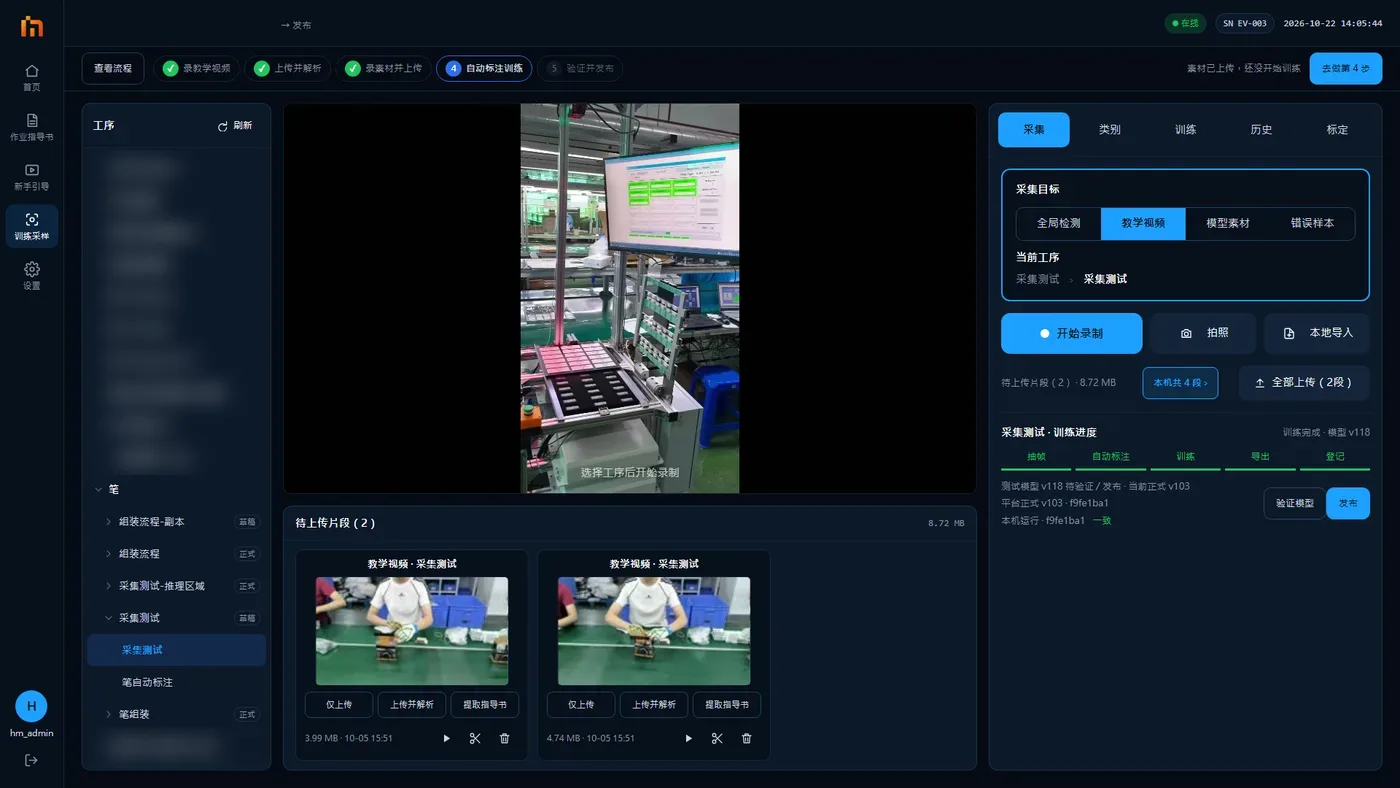
- Play back: tap the card or ▶ to watch it and make sure it was recorded.
- Edit: trim extra footage from the start and end, cut out a wrong part in the middle, or crop to 16:9. When done, press Create new clip. A new clip is added and the original is kept; delete the one you do not want yourself. Trimming the start and end takes a few seconds; "Crop picture" takes as long as the video itself, and cannot be done while producing.
- Delete: tap 🗑, then press Confirm in the pop-up.
Deleted means gone
Check carefully before deleting.
Then upload
Clips to upload are kept separately by capture target: the middle column shows only the clips under the current capture target, and "Upload All" also uploads only the clips under the current target, so footage never goes to the wrong operation. "N more clips under other targets of this operation ›" next to the clip area title reminds you that other targets of the same operation still have clips not uploaded.
Model material, global classes, error samples: press "Upload All"
On the right is the Upload All (N) button. It uploads all clips and photos under the current target at once.
- Cards that upload successfully disappear by themselves.
- Failed ones turn red with the reason. Once the network is back, press "Upload All" again to retry; a failed card also has its own Retry button.
Teaching videos of draft SOP processes: three buttons on the card
Teaching videos are not included in "Upload All". Choose on the card:
| Button | What it does | When to use it |
|---|---|---|
| Upload only | Only saves the video to the platform | You just want to store a demo video |
| Upload & parse | Saves the video and lets AI watch it and write the steps and part list automatically | Recommended when this operation already has work instructions |
| Extract SOP doc | Saves the video and lets AI watch it and first create a set of work instructions | Press this first when this operation has no work instructions yet; after they are created, do "Upload & parse" once more |
After you press one, the upload percentage shows, then "AI parsing, waiting for the platform…". You can wait, or go do something else. AI usually has the result in a few minutes:
| Message | Meaning / what to do |
|---|---|
| AI parsing done; steps and model classes written to the draft | Success. The part list appears on the "Classes" tab |
| Work instructions created; view them under "Draft" on the SOP Docs page | Work instructions created successfully |
| Video saved, but this operation has no work instructions yet. Press "Extract SOP doc" first | The video is uploaded, but work instructions are needed first |
| AI task still running; refresh the list later to see the result | AI is not done yet. After a while, switch back to the "Capture" tab (or press "Refresh") and check again |
| AI task failed: … | Press Close and upload again. If it still fails, ask a technician |
Teaching videos of released SOP processes: Replace released video
The card of a released SOP process's teaching video has only one button, Replace released video, with no AI parsing. Pressing it asks:
Replace the teaching video of the released SOP process? This is the released SOP process "SOP process › operation". After upload, it directly replaces the current teaching video and syncs to all devices (the platform keeps a backup of the old video, which can be restored). Each step's teaching clip keeps the start and end times of the old video; if they no longer match after replacing, label them again on the platform.
On success it says "Released teaching video replaced; all devices will sync", and other devices get the new video within about 10 minutes.
Replacing a released teaching video affects all devices
Ask a technician first, then press Replace.
If it says "A released SOP process's teaching video cannot be changed on the device. First 'Return to draft' on the platform", the machine version is too old. Ask a technician to upgrade it, or return the SOP process to draft on the platform.
"N clips on this device": find clips not uploaded
If you changed the capture target, or someone recorded clips without uploading them, the clips stay under their original target. Press N clips on this device › to see all clips on this machine that are not uploaded: clip name, capture target, SOP process, operation and recording time.
- Press Go upload on a row, and the page switches to that capture target automatically. Then upload as described above.
- The pop-up also has Upload All (N), which uploads everything that can be batch-uploaded at once. Results are split into "Succeeded", "Failed" and "Upload separately" (teaching videos must be uploaded from their own card). You cannot upload while recording.
It says "The capture target of this clip cannot be found in the list"
That operation may have been deleted on the platform. Ask a technician whether the clip is still needed; if not, delete it.