
Understand sampling for training
Training Sampling is where you teach the workstation to recognize parts and actions. This page explains what it does, when to use it, what to prepare, and how to read the page.
In short
- Record video or take photos → upload → training runs automatically in the background → verify on the machine → release, and the machine works with what it has learned.
- If there is no Training Sampling in the left sidebar, your company has not enabled the training platform yet. Ask your administrator.
This section is for workers who record footage. If anything is unclear or you are not sure, ask your team leader or a technician.
Do not press these buttons casually
Release this version, Remove, Sync to platform, Write back to platform and Replace released video cannot be undone on the machine. If you are not sure, ask a technician first.
What this feature does
The workstation "watches" you work through the camera, so it first has to learn the parts and actions at your station. Training Sampling is where you teach it:
- You record a video or take a few photos on the machine;
- You press upload;
- The backend learns automatically (this is called "training");
- Once it is done, you try it out on the machine to see how accurate it is (this is called "verification");
- If it is accurate, you press release, and the machine works with what it has learned from then on.
At the top of the page there is a 5-step modeling guide: ① Record teaching video → ② Upload & parse → ③ Record and upload footage → ④ Auto-label and train → ⑤ Verify and release.
- Finished steps get a green check, and the current step is highlighted. The right side says what to do next; press Go to step N to jump straight there.
- Each time a step is done, a message "Step N '…' done" pops up. When all steps are done, the right side shows "Live vN".
- View flow at the top left shows the whole flow at any time.
- When an operation has no recognition model yet, the first time you open it a message pops up automatically: "This operation has no recognition model yet. Complete these 5 steps to use it".
This page also has a calibration feature: when an operation has a step such as an "insertion check" (length ratio) that needs a value range, you place real parts here to measure, and the machine works out the pass range automatically. See Calibrate the insertion check.
When to use it
- A new product or operation has just gone live and the machine does not know the parts yet;
- The machine keeps getting a part wrong or cannot recognize it;
- A part has changed color, or the fixture or layout has changed;
- The machine got it wrong during production (false alarm or missed detection), and you want to record that scene for a technician (error sample);
- An operation has an insertion check and needs a pass range (calibration).
Before you start
| Item | How to check |
|---|---|
| The machine is idle, not producing | You can record while producing, but you cannot verify a model, crop the picture or calibrate |
| Network online | Green "Online" at the top right. Without the network you can record but not upload |
| The station is set up as for normal work | Parts, bins and fixtures in their usual places, normal lighting, and no hands blocking the camera |
| Training Sampling is in the left sidebar | If this entry is missing, your company has not enabled the training platform yet. Ask your administrator |
| Capture resolution (a technician checks this once) | Settings › Display › Capture Resolution; 1920×1080 is recommended. Footage is recorded at this resolution; higher is clearer |
Do not change the capture resolution while producing
After changing it, the machine's picture goes black for about 3 seconds.
To open it: press Training Sampling in the left sidebar. You can also press Go to Sampling page under Settings › System.
The page layout
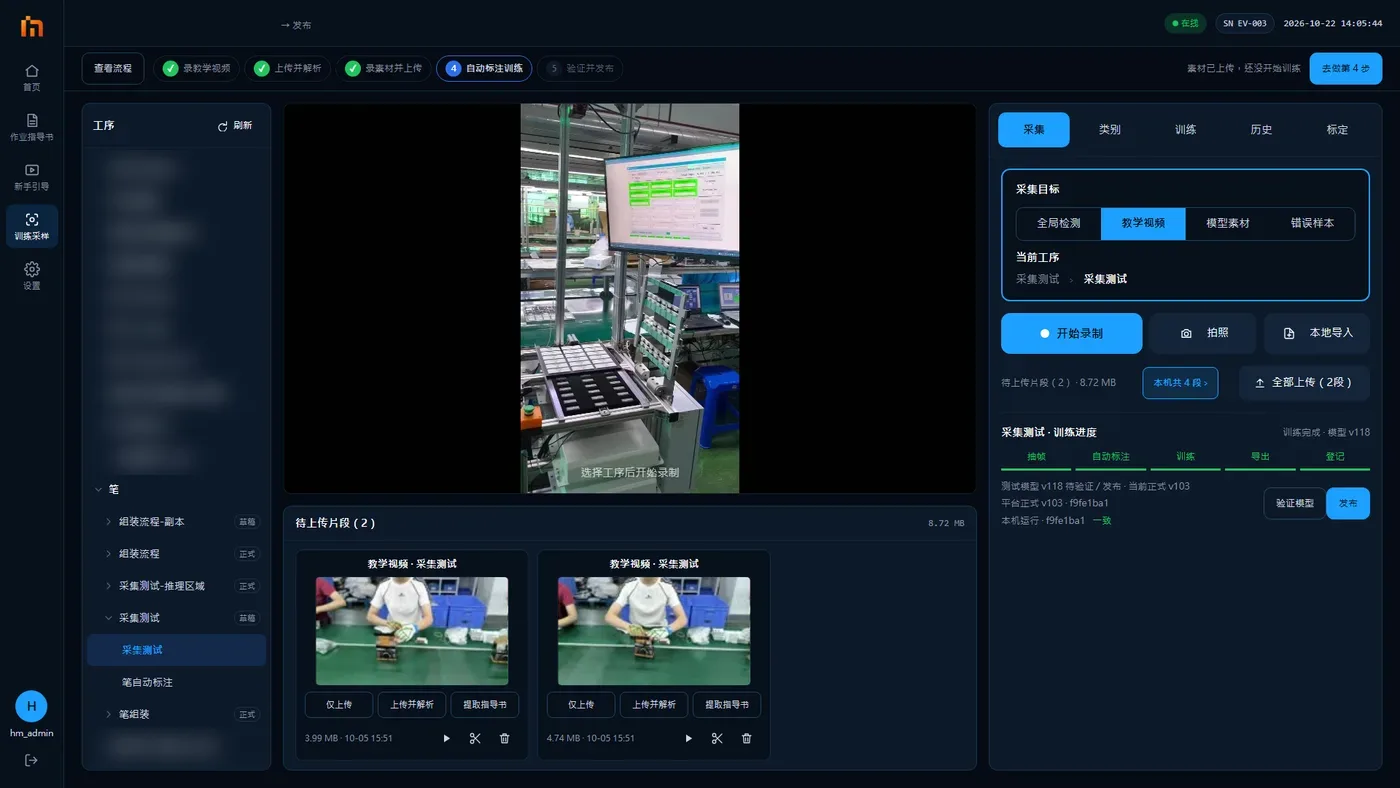
The page has three columns:
Left column "Operations": the operation tree, expanding level by level as product › SOP process › operation. SOP processes not linked to a product are under "Not linked to a product".
- Tags after an SOP process name: "Released" = reviewed and live; "Under review"; "Draft" (dashed border) = not yet submitted for review.
- An operation tagged orange "No teaching video" needs a teaching video recorded first.
- Next to the title is a Refresh button: SOP processes and operations just created on the platform appear as soon as you press it. When you open this page, it first shows the last list, then automatically fetches it again from the platform.
Middle column: the camera picture on top, and "Clips to upload" below.
- On the "Capture" tab the picture is clean, with no boxes drawn, and the recorded footage is clean too. Boxes are drawn only on the "Training" tab.
- While recording, a red dot and a timer show at the top left of the picture.
Five tabs in the right column:
| Tab | What it is for |
|---|---|
| Capture | Choose a target, record, take snapshots, upload. Used most often |
| Classes | See which parts this operation needs to recognize, and the company-wide global classes |
| Training | Start training, watch progress, verify, release |
| History | See what was uploaded before and whether it succeeded |
| Calibrate | Measure the pass range on site for steps such as insertion checks |