
Read and handle alarms
The workstation raises an alarm when you skip a step, do it wrong, or take the wrong part. This page explains how to read the alarm dialog and when to press each of its three buttons.
In short
- Do what the largest line of text in the alarm dialog says.
- Once you fix it, the dialog closes by itself.
- If it does not close, press Continue.
Two kinds of alarm
| Alarm | What it looks like | What to do |
|---|---|---|
| Reminder (minor) | A yellow strip pops up at the top right of the video and disappears by itself after about 4 seconds | Take a look and correct it as told. No need to tap anything |
| Alarm (major) | An alarm dialog pops up in the middle of the screen, the red light flashes and the buzzer sounds | Do what the large text in the dialog says, then press a button |
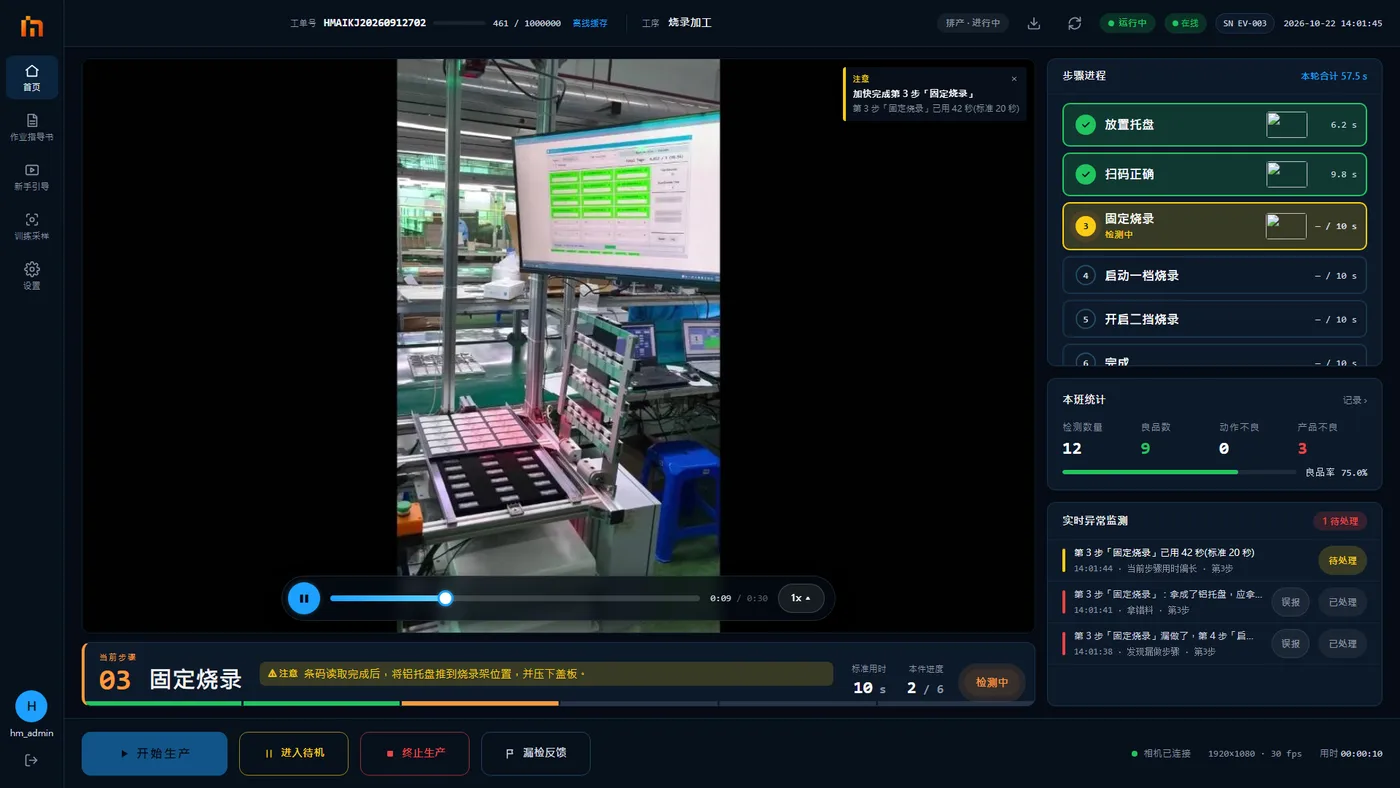
When the same reminder appears several times in a row, it is merged into one line with "×count" after it. At most 2 reminders are shown at a time. If there are more, you see "N more reminders". Tap × to close one.
Reading the alarm dialog
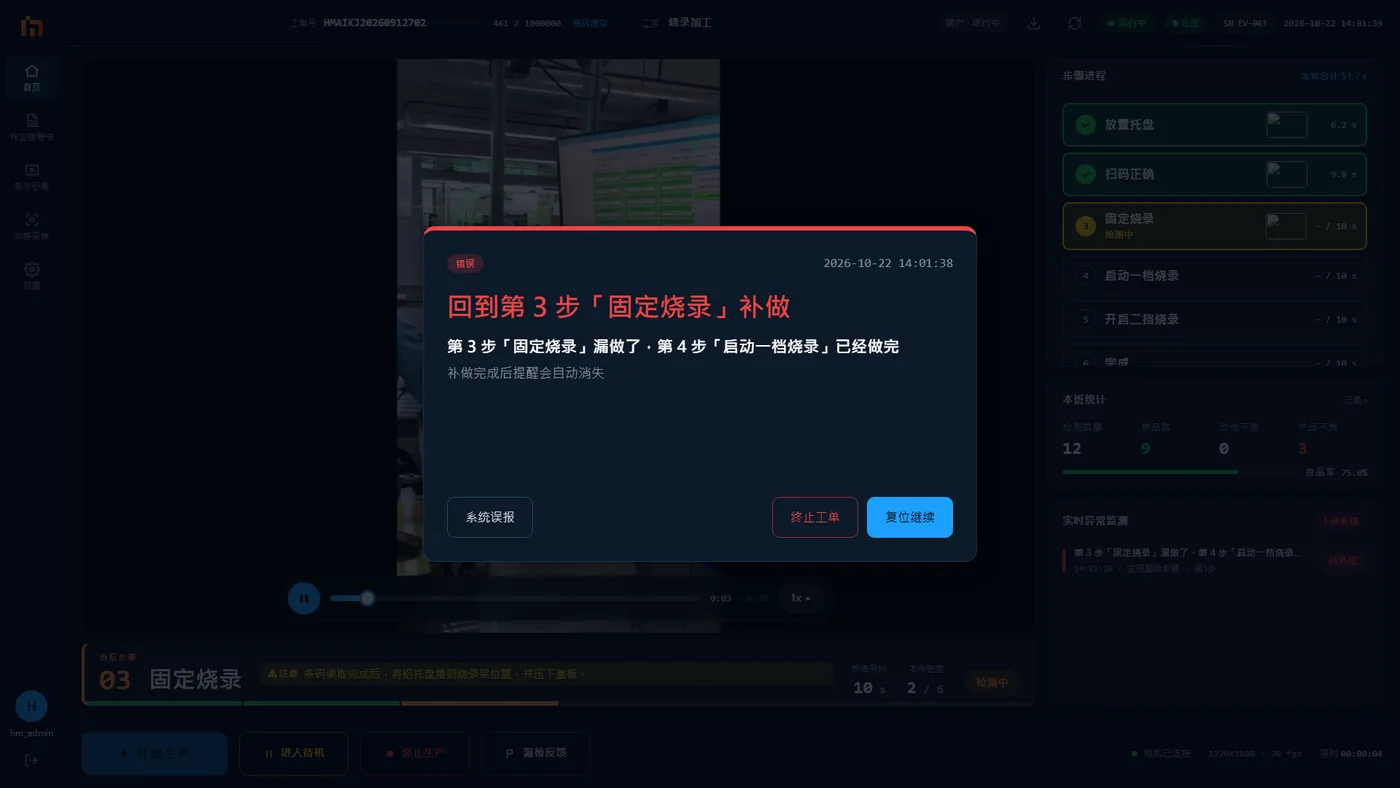 1234
1234- The largest text: what you should do now. For example, "Go back to step 3 Fix the programmer and do it". Do this first.
- What went wrong. For example, "Step 3 Fix the programmer was skipped; step 4 Start programming is already done".
- Extra notes. Small gray text, for example "The reminder clears itself once you redo the step". Some alarms do not have this line.
- Three buttons. See the next section.
Some alarm dialogs also show a thumbnail: the frame at the moment the machine decided something was wrong, with the problem part outlined in a thick orange box. Tap the thumbnail to enlarge it, and tap again to close it. Right after the dialog pops up, it may show "Generating image" first; the image appears in a second or two. If there is a lot of text, scroll up and down inside the dialog.
The three buttons in the alarm dialog

| Button | When to press it | What happens |
|---|---|---|
| Continue | You have fixed it as the large text says, or you have read it and want to carry on | Closes the alarm dialog; production continues |
| False alarm | You really did nothing wrong; the machine saw it wrong | Carries on just like Continue, and also sends this frame back so the machine makes this mistake less often. This button is not shown during practice |
| Abort Order | This piece cannot be finished and you need to stop | Stops production |
Whichever button you press, the buzzer stops at once. The red light keeps flashing until the problem is fixed, then turns back to green.
Fix it and the dialog closes by itself
You redo the skipped step, take from the right cell, or put the knocked-off part back: once the machine recognizes it, the alarm dialog closes by itself. No need to press a button. Alarms of the same kind for this step (for example, two "part knocked off" alarms in a row) close together.
Press "False alarm" only when the machine really saw it wrong
If you made the mistake yourself and press False alarm, you teach the machine the wrong thing. Later it may miss errors it should catch.
Common alarms
Step names, part names and bin numbers are whatever your screen shows. The large text always names the exact step, part and bin number.
| Alarm | Example of the large text | What you should do |
|---|---|---|
| Skipped step | Go back to step 3 Fix the programmer and do it | Go back and do the skipped step. Once it is done, the alarm clears itself |
| Done too early (wrong order) | Remove the programming cable, do step 3 Fix the programmer first | Remove what you fitted too early, then redo the steps in order |
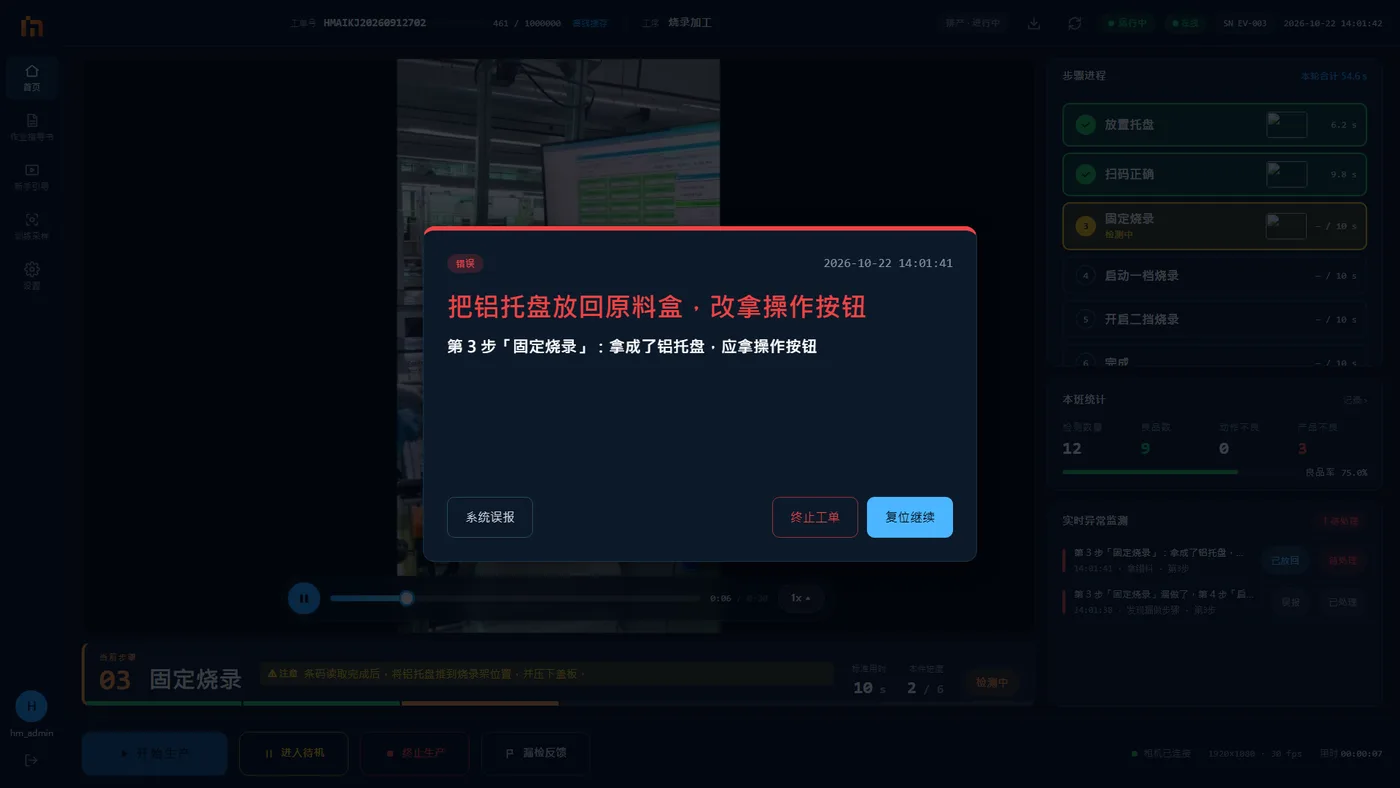
| Wrong part | Put the programming cable in bin 2 and take the circuit board instead | Put it back and take the right part (see Return a wrong part to its bin) |
| Wrong bin | Take out the programming cable and put it in bin 2 | Take it out of the wrong bin and put it in the right one |
| Wrong cell | Put it back and take again from "cell 1" | Put it back and take from the right cell. Once you do, the alarm clears itself |
| Wrong count | Add 1 more screw at position 2 | Add parts until the count is right |
| Part knocked off | Put the tray back on | Refit the part that fell off. Once it is back, the alarm clears itself |
| Not fully inserted | Push the pin all the way in, put it back on the check position, and move your hands away | Insert it fully again, put it back on the check position, and move your hands away so the machine can see |
| Timeout (usually a yellow reminder) | Finish step 3 Fix the programmer faster | Finish this step quickly. The line below shows the seconds used and the standard time |
| Inspection failed | Take this piece off the line for checking | Take this piece off and hand it to your team leader for checking |
| Steps still not done | — | See Redo a missed step |
Lights and buzzer
| Light / sound | Meaning |
|---|---|
| Steady green | Producing, all normal |
| Steady yellow | Standby |
| All off | Idle, not producing |
| Red flashing + buzzer beeping | There is an alarm. By default the buzzer stops by itself after 5 seconds. The red light keeps flashing until the problem is fixed |
| Pick light: green | Take the part from this bin for the current step |
| Pick light: red | Do not take from this bin now |
Alarm list
The "Live abnormals" tab at the bottom right lists all alarms. Each one is marked "Pending" or "Handled". If you later find that a handled alarm was the machine seeing it wrong, you can press False alarm to mark it afterwards. See Report false alarms and missed detections.