
Check the class list
The Classes tab lists the parts this operation needs to recognize, and the company-wide global classes. Workers mainly check that the Chinese names are right and no part is missing.
In short
- Open the Classes tab and check that the Chinese names are right and no part is missing.
- After adding a part, press Sync to platform for it to take effect.
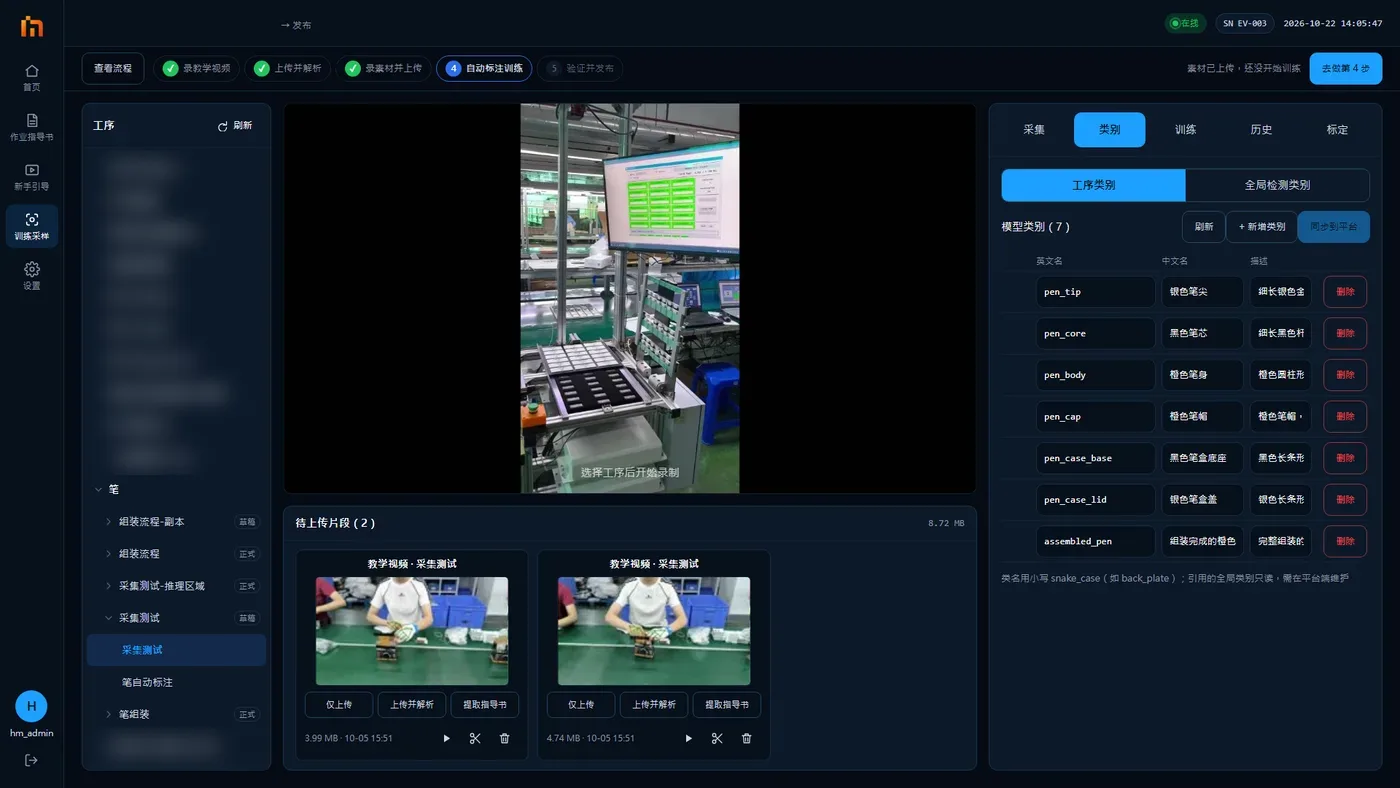
At the top of the "Classes" tab there are two views: Procedure classes and Global classes. Both have the columns English name / Chinese name / Description.
Procedure classes
The parts this operation needs to recognize.
- Usually maintained by technicians. Workers only need to check that the Chinese names are right and no part is missing.
- To add a part, press + Add class, fill it in, then press Sync to platform for it to take effect. The English name can use only lowercase letters and underscores (such as
back_plate). If you are not sure how to fill it in, ask a technician. - Below is a separate section, "Global classes used by this operation". It is view-only and cannot be changed here.
Global classes
Classes shared by the whole company and not tied to any operation (hard hats, gloves and so on).
- You can add one on the machine with + Add global class, and Edit its Chinese name and description.
- The English name cannot be changed once created. Deleting or disabling is done on the platform.
- If it says "The platform has not been upgraded yet; view only for now. Add new ones on the platform", you can only view.
- A class tagged "Training project not ready": the matching training project has not been set up on the platform yet. Ask a technician.
Sync to platform cannot be undone on the machine
Check carefully before pressing it.