
Calibrate the insertion check
The insertion check measures a length ratio to tell whether a part is fully inserted. Do not guess the pass range. On the Calibrate tab, place a few good pieces and a few bad ones, and the machine works out a recommended range; after you confirm, write it back to the platform.
In short
- Stop production, choose the step on the Calibrate tab, and press Start calibration.
- Record good pieces at least 3 times (5 or more is better, a different piece each time), and bad pieces 3 times if possible.
- Press Write back to platform only when it says "The two groups are separate". If it says "The two groups overlap", do not write back; ask a technician.
What this is for
Some steps need to check "is it fully inserted?", for example a refill pushed into a pen barrel. The machine does this by measuring a length ratio: visible refill length ÷ pen tip length. The deeper it goes in, the smaller the ratio. If the ratio is within the pass range, it counts as fully inserted.
Do not guess this pass range (for example 1.02–1.12). Here you place a few good pieces and a few bad ones, the machine actually measures them, works out a recommended range, and after you confirm, writes it back to the platform in one step.
What is needed for calibration: a technician has already chosen the detection type "Length ratio" for this operation's inspection step on the platform, and it has been reviewed and released to this machine. If not, the tab says "None of the operations released on this device has a 'Length ratio' detection step…".
Steps
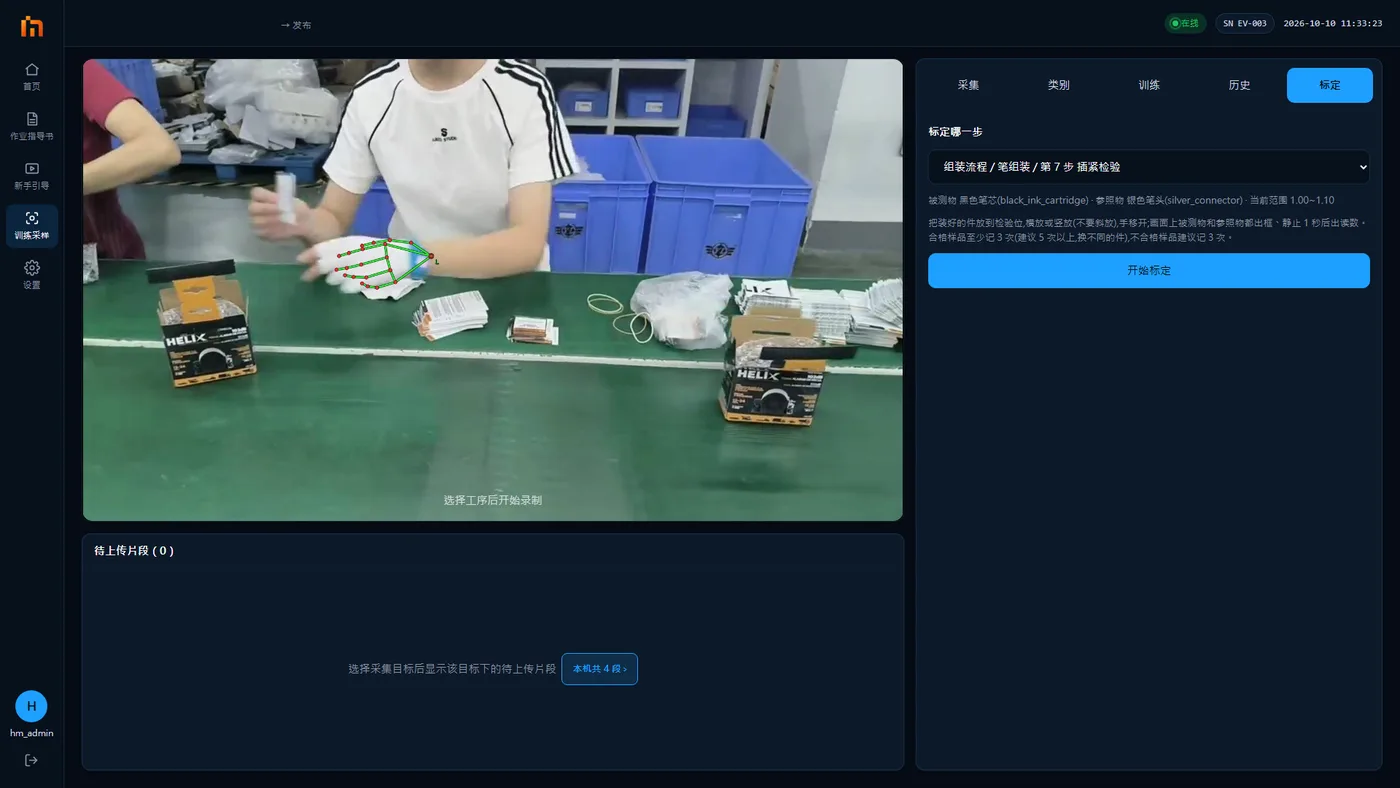
- Stop production. While producing, the button shows "Producing; stop production first" and cannot be pressed.
- Tap the Calibrate tab and choose the step to calibrate in the "Step to calibrate" drop-down (shown as SOP process / operation / step N step name). The line below shows the measured object, the reference object and the current range. If it says "This operation has no model yet and cannot recognize", a model has to be trained and released first.
- Press Start calibration. During calibration the machine recognizes only this step; nothing is counted as production and no alarms are raised.
- Place a good sample: put an assembled good piece on the check position, lying flat or standing upright, not tilted, and move your hands away. Once both the measured object and the reference object are recognized on the picture and stay still for 1 second, the large text in the middle shows the reading, with "Stable, ready to record" below it. While the reading is still jumping, it shows "Waiting for it to settle…" and the buttons are gray.
- Press Record as good. Change to another good piece and repeat steps 4 and 5. Record good pieces at least 3 times, 5 or more is better, using a different piece each time.
- Place a bad sample: for example, a piece deliberately not fully inserted. Place it the same way, move your hands away, wait until it is stable, then press Record as bad. 3 times is recommended.
- Read the recommendation (see the table below). The "Ratio range to write back (editable)" below already has the upper and lower limits filled in.
- When everything looks right, press Write back to platform, then press Write back to platform again in the pop-up.
- Press Finish. Leaving this page also ends calibration.
If you recorded a wrong reading, press the × after that reading to delete it.
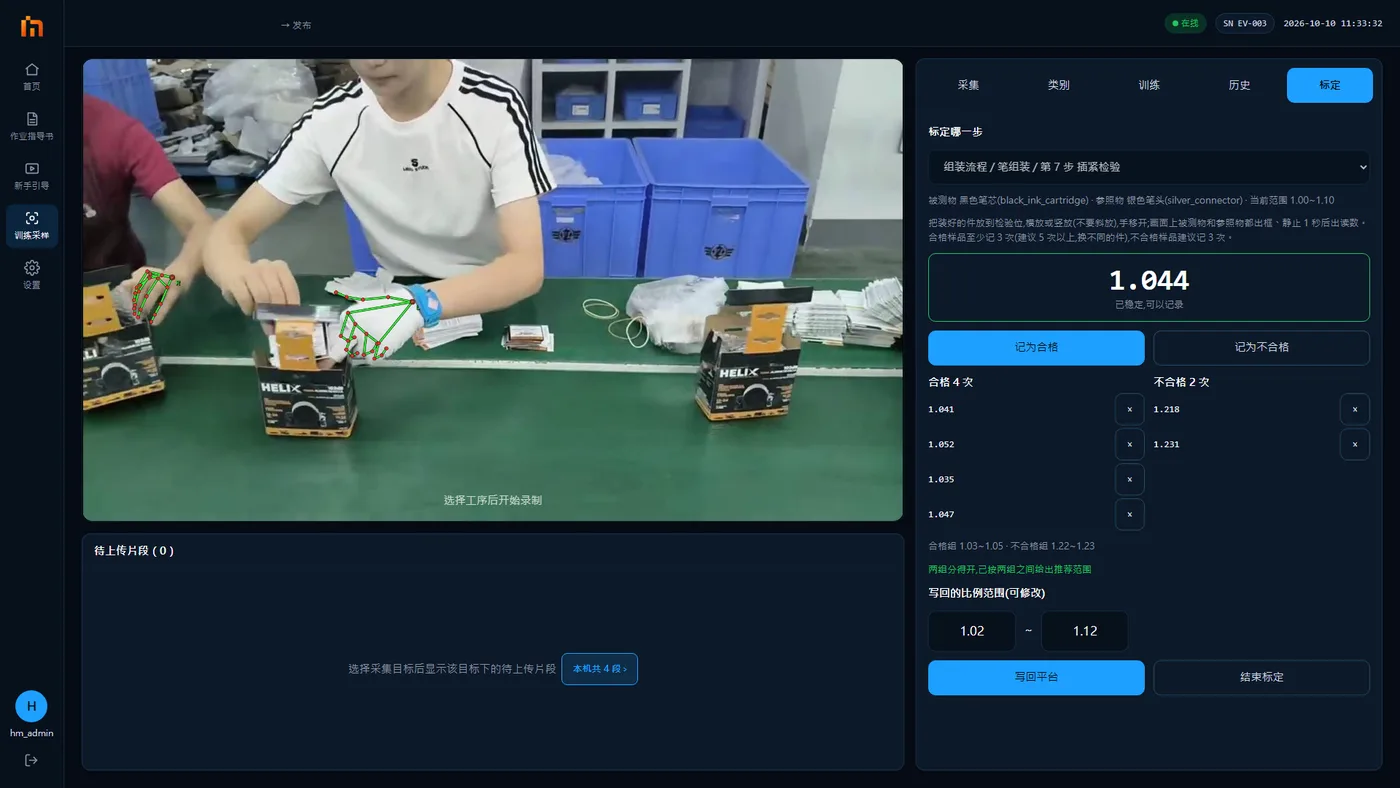
Reading the recommendation
| Display | Meaning | What to do |
|---|---|---|
| Record N more good samples to get a recommended range | Fewer than 3 good samples so far | Keep recording good pieces |
| Good samples only; the recommended range is widened from the good readings… | No bad pieces recorded yet, so the range is the good readings widened a little | If you can find bad pieces, record a few to confirm the two groups are separate |
| The two groups are separate; a recommended range is given between them | Good and bad readings do not overlap; the range is reliable | You can write it back |
| The two groups overlap (N bad readings fall inside the good range) | Good and bad pieces measure about the same, so this method is not reliable for this part | Do not write back. Ask a technician: the placement may be off, the reference object may be a poor choice, or this part really cannot be told apart by measuring |
Above it there is also a line "Good group a–b · Bad group c–d", showing each group's range of readings, for reference.
After writing back
- Writing back changes the SOP process draft on the platform. If this SOP process has already been approved, it is returned to draft, with the message "Written back; the SOP process has been returned to draft (version …). Submit it for review again on the platform".
- The new range reaches the workstation only after it is submitted for review again on the platform, approved and released. Right after writing back, the machine still uses the old range for a while. This is normal.
Writing back cannot be undone on the machine
Check the upper and lower limits carefully before pressing it.
Notes
- Place samples at the usual check position, in the usual way. However you place them during calibration is how they must be placed during production.
- Use different good pieces. Do not place the same piece again and again, or the range will be too narrow and cause false alarms during production.
- When the two groups overlap, do not force a write-back; it will only cause false alarms or missed detections every day.
- During production, a "Measured ratio" floating card also shows at the top right of the run screen, so you can compare it in daily work.
- Do not press Start calibration while someone else is producing.