
Label and review
The boxes the AI draws can never all be right. How accurate the model is depends mostly on how carefully you review in this step. This page covers how to read the labeling page, how to fix boxes, how to use Quick review, and how to delete frames.
Page layout

- Numbers at the top: total frames, reviewed, to review, unlabeled, manual correction rate. Click any of "已核查" (Reviewed), "待核查" (To review) or "未标注" (Unlabeled) to show only those frames. Click it again to cancel.
- Frame pool on the left: a list of thumbnails. You can filter by source (SOP / part › type › footage), status (未标注 (unlabeled) / 自动标注(待核查) (auto-labeled (to review)) / 人工 (manual) / 人工修正 (manually corrected) / 已核查 (reviewed)) and class. The 困难样本 (Hard samples) button filters out the hard-sample frames in one click.
- Canvas in the middle: the current frame and its boxes, with a toolbar above.
- Right side: the class list (switch with number keys 1-9) and the boxes on the current frame.
- Top-right corner: 导出 zip (Export zip), 导入 zip (Import zip), 刷新 (Refresh), 全屏 (Fullscreen).
Fix boxes
| Action | Button / shortcut |
|---|---|
| Previous frame / next frame | A / D |
| Draw boxes continuously | W |
| Click to get a box automatically (click on the part and the AI boxes it for you) | E |
| Copy the boxes from the previous frame | F |
| Clear this frame | Y |
| Save and go to next frame | S |
| Switch class (select a box, then change its class) | Number keys 1-9 |
| Delete a box | Select it, then press Del |
| Undo | Z (up to 5 steps) |
| Select several boxes | Ctrl + click |
| Copy / paste boxes | Ctrl+C / Ctrl+V |
| Hide the selected box's label / show or hide all labels | J / K, L (when Quick review is on, J/K are used to mark right or wrong. For labels, click the 标签 (Tags) button on the toolbar) |
| Stop drawing | Esc |
| First frame / last frame | Home / End |
There is a line of shortcut hints below the canvas. Check it if you forget.
Quick review (recommended)
When most boxes are right, Quick review saves the most time.
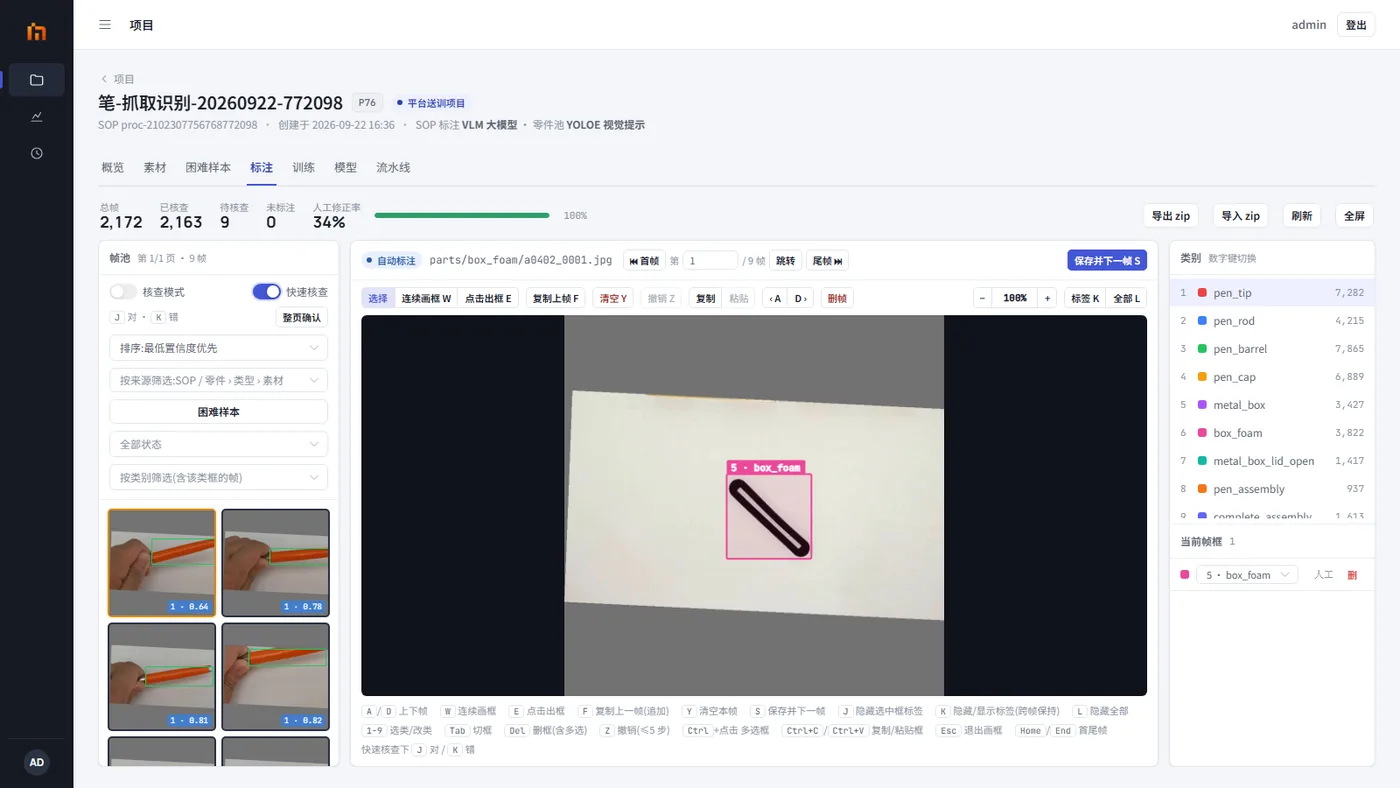
- Turn on the 快速核查 (Quick review) switch on the left.
- By default it sorts by "最低置信度优先" (Lowest confidence first): the frames the AI is least sure about come first, so you check them first. You can also choose "模型分歧优先" (Model disagreement first).
- Look at one frame: if the boxes are right, press J (marked as reviewed, then it goes to the next frame automatically); if the boxes are wrong, press K (the thumbnail is marked with a red "错" (wrong), then it goes to the next frame automatically).
- If a whole page is right, click 整页确认 (Confirm page).
- Come back later to fix the frames marked wrong: click a red tile (or choose "待修正" (Needs fixing) under "全部状态" (All statuses) to filter them out), fix it in the large image and press S to save. The red mark disappears automatically.
In Quick review, A / D to switch frames and S to save and go to the next frame still work as usual.
The "核查模式" (Review mode) switch has been removed
The screenshot still shows a "核查模式" (Review mode) switch above the frame pool. The current version no longer has it. Quick review can do everything it did.
Delete frames
Delete frames that are blurry, blocked by a hand, or not related to the operation. Click 删帧 (Delete frames) on the toolbar. There are four ways to delete:
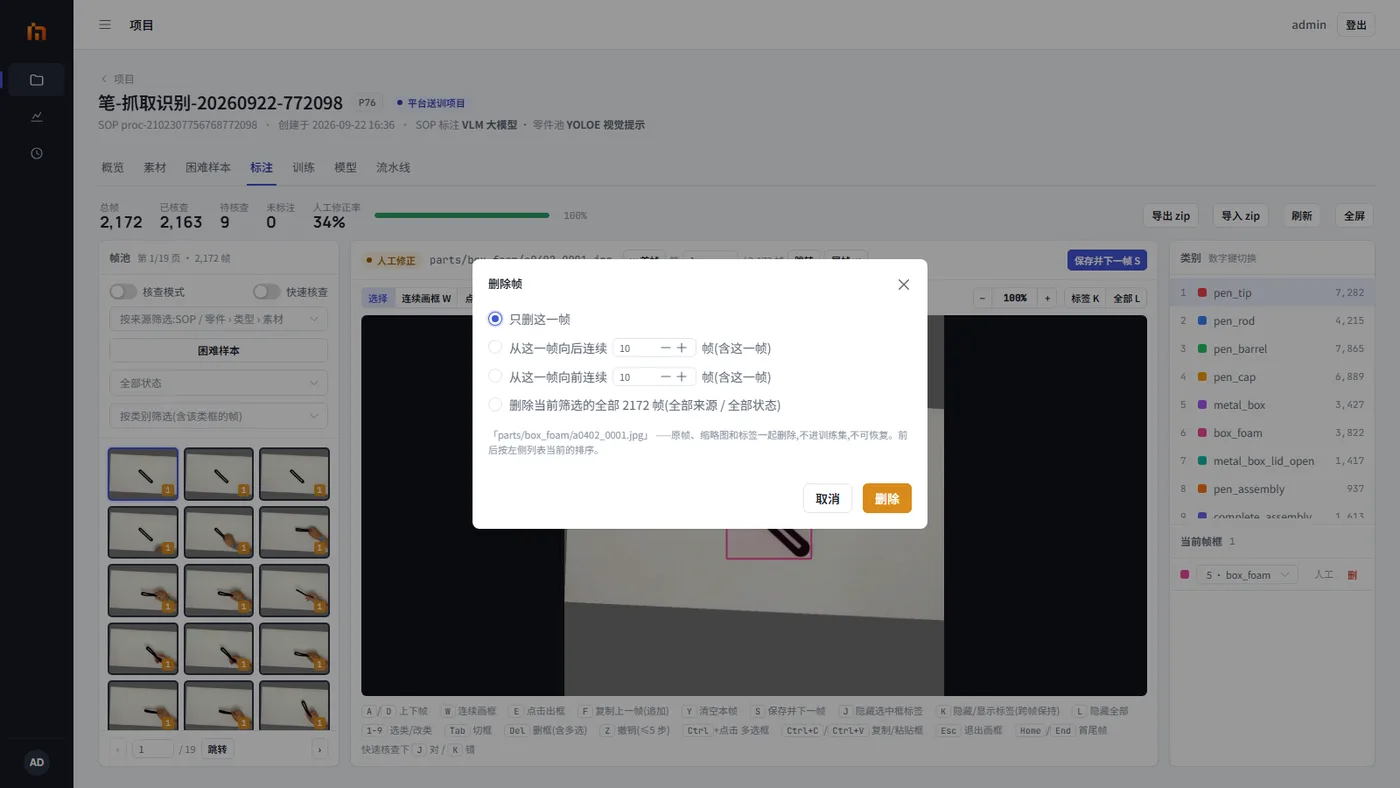
- Delete only this frame;
- Delete N frames in a row forward from this frame (including this frame);
- Delete N frames in a row backward from this frame (including this frame);
- Delete all frames in the current filter.
Deleted frames cannot be recovered
The original image, the thumbnail and the boxes are all deleted together. Check carefully before you click.
How much review is enough to train
- Each class needs enough boxes. Usually at least a few dozen per class. More is better.
- Try to bring "待核查" (To review) down to zero. The higher the share reviewed, the more reliable the trained model. You can check the "帧 / 已核查" (Frames / reviewed) column in the project list at any time.
- Review matters more than quantity: 1,000 reviewed images are more useful than 5,000 AI boxes nobody has checked.
Two people editing the same frame at the same time
When you save, you see "该帧标注已被其他人改动,请重新载入后再保存" (The labels on this frame were changed by someone else. Reload, then save again). Refresh, then make your changes again.