
Train a model
Once review is done, you can start training. This page covers how to fill in the training parameters, how to read training records and reports, and how high mAP must be before the model is usable.
Before you start
- Frames have been extracted, labeled and reviewed. See Label and review.
- Each class has enough boxes.
Start training
Open the project, click the 训练 (Training) tab, and fill in "发起训练" (Start training) on the left:
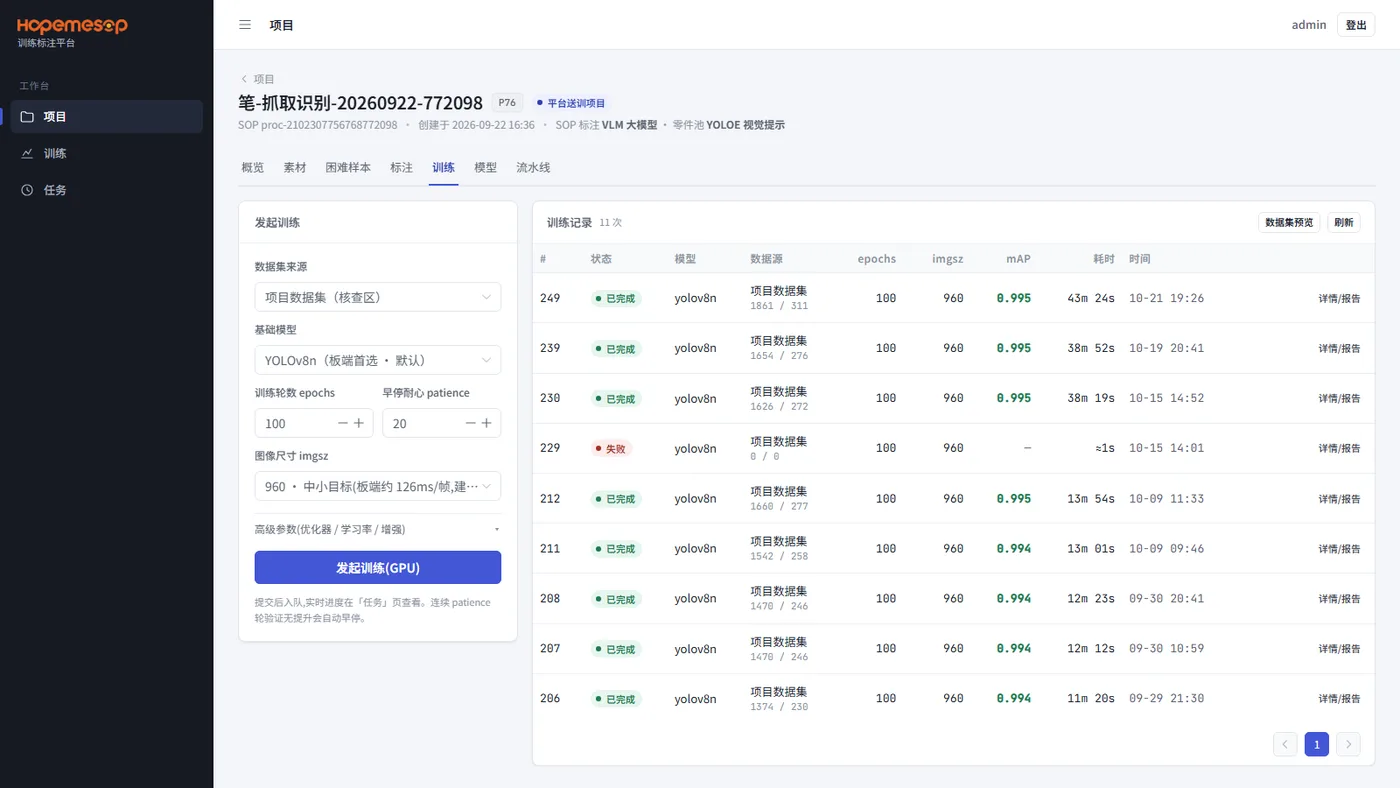
| Item | Notes |
|---|---|
| Dataset source | Usually choose "项目数据集(核查区)" (Project dataset (review area)) |
| Base model | Default YOLOv8n (the fastest on the workstation). Usually do not change it |
| Training epochs (epochs) | Default 100 |
| Early-stop patience (patience) | Default 20: if there is no progress for 20 epochs in a row, training stops early |
| Image size (imgsz) | The system recommends it based on target size. The smaller the part, the larger it must be (640 / 960 / 1280), but the workstation also runs slower |
| Advanced parameters | Optimizer, learning rate, data augmentation. Usually leave them alone |
When done, click 发起训练(GPU) (Start training (GPU)). Check the queue and progress on the 任务 (Task) page. It usually takes from a dozen minutes to an hour.
When training finishes, the model is exported automatically as an FP16 model the workstation can run. Check it on the 模型 (Model) page. See Release a model.
Training records
"训练记录" (Training records) on the right lists each training run: status, model, data source, epochs, imgsz, mAP, duration, time. The two numbers under the data source = how many images were used for training / how many for validation.
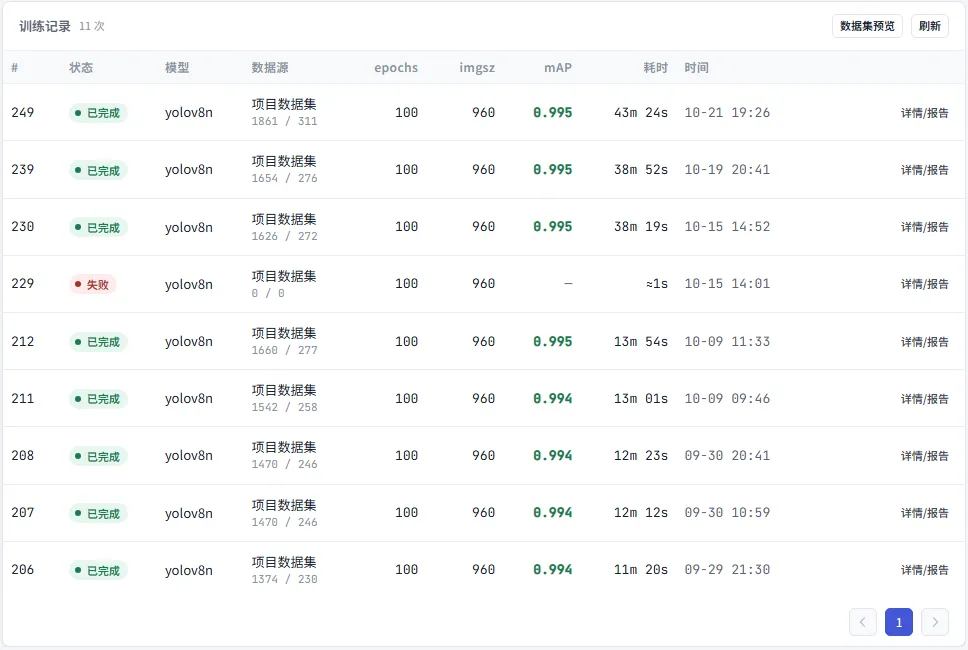
Click 数据集预览 (Dataset preview) in the top right to browse which images are in the training set and the validation set.
Training report
Click 详情/报告 (Details / report) for a training run:
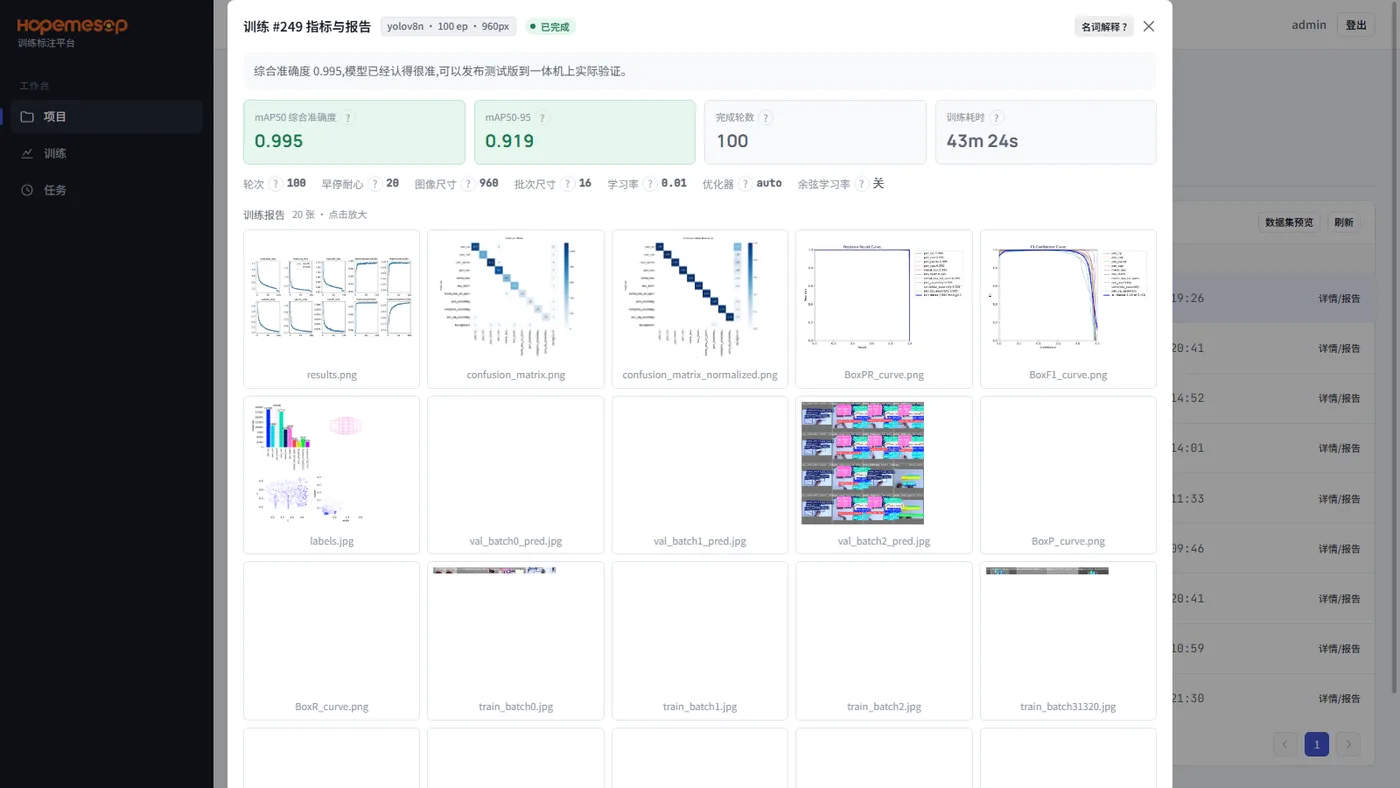
- A plain-language conclusion at the very top, for example "综合准确度 0.995,模型已经认得很准,可以发布测试版到一体机上实际验证" (Overall accuracy 0.995. The model already recognizes things very accurately. You can release a test version to the workstation and verify it for real).
- Metric cards: mAP50 overall accuracy, mAP50-95, epochs completed, training duration. The small question mark next to each one explains it. Click 名词解释 (Glossary) in the top right to see all of them.
- Training report images. Click to enlarge. The second and third, the "混淆矩阵" (confusion matrix), are the most useful: they show which class tends to be recognized as which other class. For two classes that get mixed up, go back and add more footage and review more.
How to read mAP50
| mAP50 | Notes | What to do |
|---|---|---|
| Above 0.9 | Recognizes very accurately | Release a test version and verify it on the workstation |
| 0.7 - 0.9 | OK, but some classes are not recognized accurately | Look at the confusion matrix. Add footage and review for the weak classes |
| Below 0.7 | Not usable | Check whether the labels have many wrong boxes, and whether there is enough footage |
In the end, real verification on the workstation is what counts
Accuracy is calculated on the validation set. From 2026-10-26, the validation set is split by whole pieces of footage: one video clip, one part video, or photos taken in a burst within the same minute go either all into the training set or all into the validation set. One video is no longer split across both. If there are only one or two pieces of footage, a continuous section at the end of each piece is used for validation instead. "验证集划分" (Validation split) in the training details shows which method was used.
Before this, training took every few frames for the validation set, so images from the same video half a second apart ended up on both sides. That is like testing with the exact questions it studied. mAP was usually around 0.99, which was too optimistic. In training records and model versions, these mAP values have a yellow "*" after them. Hover over it for an explanation. So when you retrain after this change, it is normal for mAP to drop a bit. That is the more realistic number.