
Upload footage, extract frames and auto-label
Footage is the raw material for training. This page covers where footage comes from, how to upload it, and how to cut videos into frames and let AI draw the boxes first.
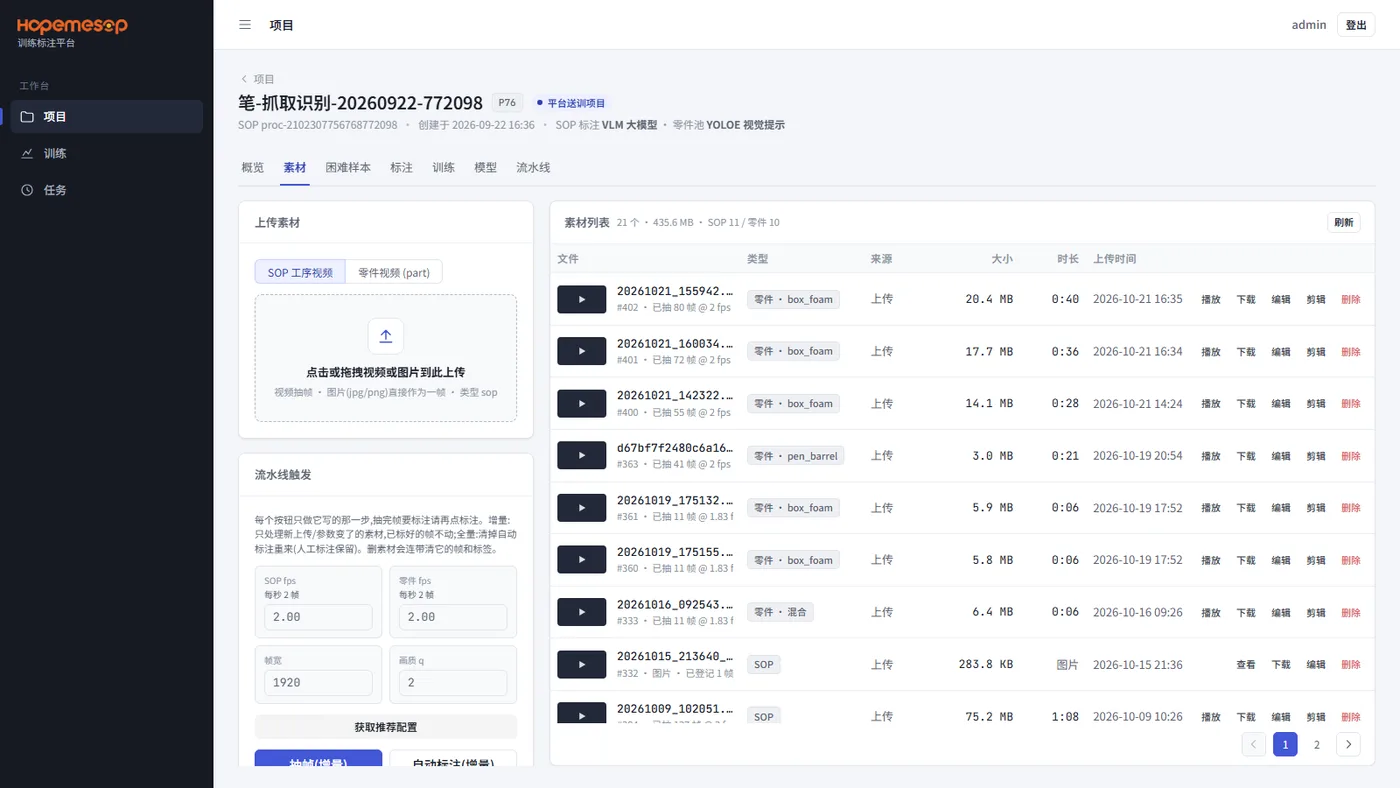
Where footage comes from
| Source | Notes |
|---|---|
| Submitted for training from the admin console | The operation's teaching video is synced over automatically, named teach-<number>.mp4. The same video is not uploaded twice |
| "训练采样" (Training Sampling) on the workstation | Teaching videos, SOP footage and part footage that workers record on the workstation come in automatically after upload |
| Uploaded on the training platform | "上传素材" (Upload footage) on the left. See below |
Upload footage
- Open the project and click the 素材 (Footage) tab.
- In "上传素材" (Upload footage) on the left, first choose the type: SOP 工序视频 (SOP operation video) or 零件视频 (part) (Part video (part)).
- Drag the videos or images in.
- A part video must have a part name (choose a class). If one clip contains several kinds of parts, choose "混合类别(多个零件)" (Mixed classes (several parts)).
- Images must be jpg / png. One image counts as one frame.
- If footage with the same name already exists, the upload is rejected. Delete the old one first, then upload.
Each row in the footage list on the right has 播放 (Play) / 下载 (Download) / 编辑 (Edit) / 剪辑 (Edit) / 删除 (Remove), and shows how many frames were extracted. Deleting footage also deletes the frames and boxes extracted from it.
Extract frames and auto-label
Do this in "流水线触发" (Pipeline triggers) in the lower left:
- First click 获取推荐配置 (Get recommended settings). The system suggests a suitable SOP fps, part fps, frame width and image quality based on the footage.
- Then click the four buttons below as needed:
| Button | What it does | When to use it |
|---|---|---|
| 抽帧(增量) (Extract frames (incremental)) | Extracts only newly uploaded footage, or footage whose settings changed. Footage already extracted is left alone | Click this whenever you add footage |
| 自动标注(增量) (Auto-label (incremental)) | Draws boxes only on frames that have not been labeled yet | Click it right after frame extraction |
| 全量重抽 (Re-extract all) | Extracts all footage again | When you changed the frame extraction settings and want to redo everything |
| 全量重标 (Re-label all) | Clears the boxes the AI drew and labels again. Boxes labeled by people are kept | When the AI labeled badly, or after you changed a detection phrase |
Frame extraction and labeling run in the background. Check progress under 任务 (Task) on the left.
Messages that may appear
- 抽帧参数有改动 (Frame extraction settings changed): appears when the frame extraction settings have changed. It asks whether to extract with the new settings.
- 混合类别素材缺参考帧 (Mixed-class footage is missing reference frames): there is "混合类别" (Mixed classes) footage, but some parts have no separate part footage. It is best to first add a separate part video for each of those parts. You can also click 仍然标注 (Label anyway) to continue, but those parts may not get labeled.
- 积分确认 (Credit confirmation): if your company is billed by credits, this appears before auto-labeling so you can confirm.
The method used for auto-labeling is shown in the page header: SOP frames use "VLM 大模型" (VLM large model) or "自训模型" (self-trained model), and part footage uses "YOLOE 视觉提示" (YOLOE visual prompt). You usually do not need to worry about it.
Re-extracting everything and deleting footage lose data
Think before you click. Re-labeling everything does not lose boxes labeled by people, but deleting footage deletes its frames and boxes along with it.