
Handle hard samples
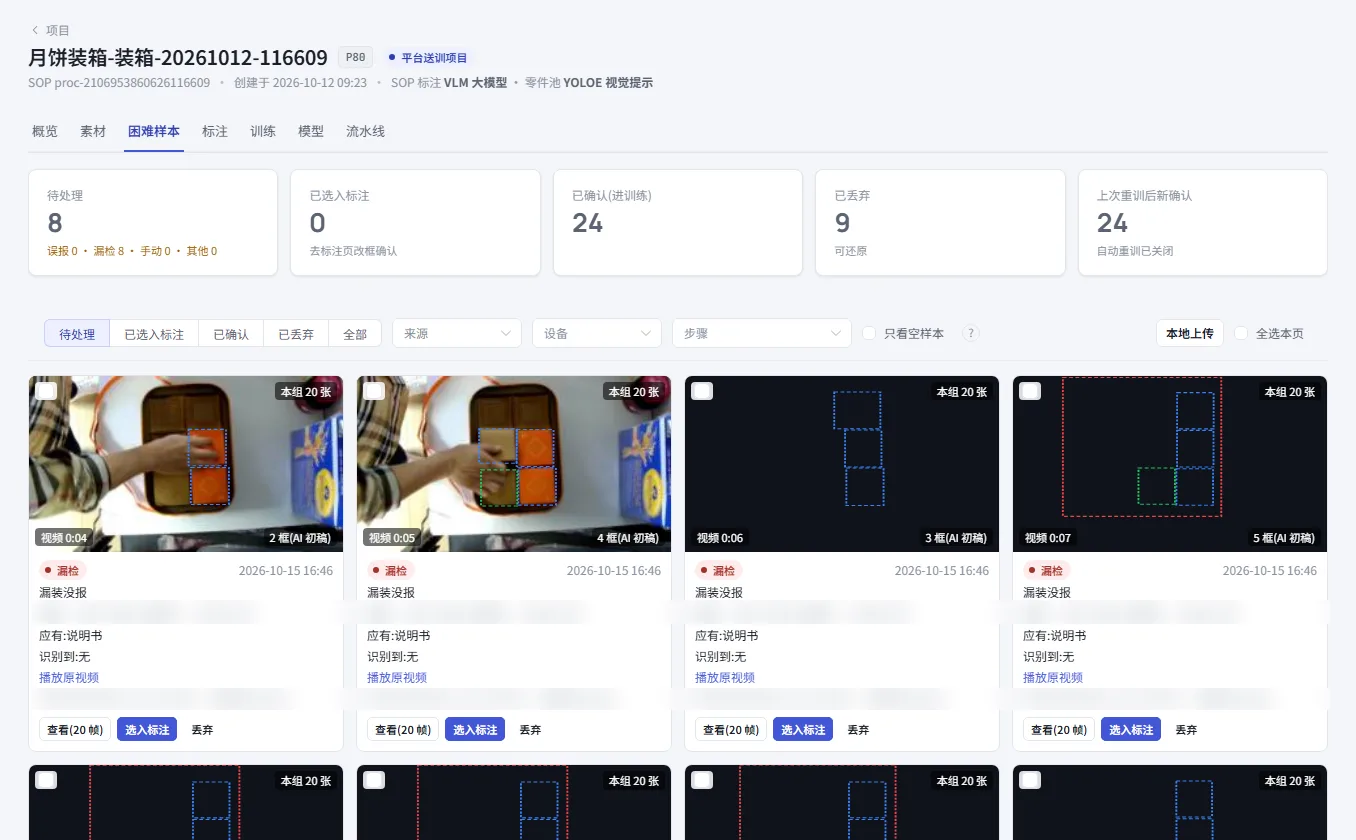
Images the workstation got wrong (false alarms, missed detections) are sent back to the training platform. This page covers where hard samples come from, and how to pick the useful ones and add them to the next training run.
Where they come from
| Source | How it is created |
|---|---|
| System false alarm | When the workstation raised an alarm, the worker clicked 系统误报 (False alarm), or later marked it as "误报" (False alarm) in the abnormal list |
| Missed detection | 漏检反馈 (Missed alarm) on the workstation: the worker drags to select the part done wrong in the last 2 minutes of video |
| Manual recording | Videos and photos recorded on the workstation under "训练采样 → 错误样本" (Training Sampling → Error sample); or 本地上传 (Upload from computer) in the top-right corner of this page |
| Low confidence | The workstation grabs an image automatically when it is not sure about a detection. Off by default. If you need it on, contact your account manager |
- Only images that people chose to report are collected: if you train with alarm images from when a worker really did something wrong, the model gets worse the more you train.
- Videos are cut into a set of images at about 1 per second, up to 30 per clip.
- Feedback from practice mode is not sent back.
For how workers give feedback on the workstation, see Report false alarms and missed detections.
What is on the page
- Five numbers at the top: to handle (split into false alarm / missed detection / manual / other), added to labeling, confirmed (in training), discarded, newly confirmed since the last retraining.
- Filters: status (待处理 (to handle) / 已选入标注 (added to labeling) / 已确认 (confirmed) / 已丢弃 (discarded) / 全部 (all)), source, device, step. Tick "只看空样本" (Empty samples only) to see only samples with no boxes.
- Each card: source, time, reason, operation step, what should be there, what was actually detected, piece number, operator. For samples from video, it says "本组 N 张" (N images in this set).
How to handle them
Watch the original video: click 播放原视频 (Play original video) on the card. You can download it. The original video is kept for 30 days.
Look at this set of images: click 查看(N 帧) (View (N frames)) and page left and right. You can only view here. You cannot change boxes.
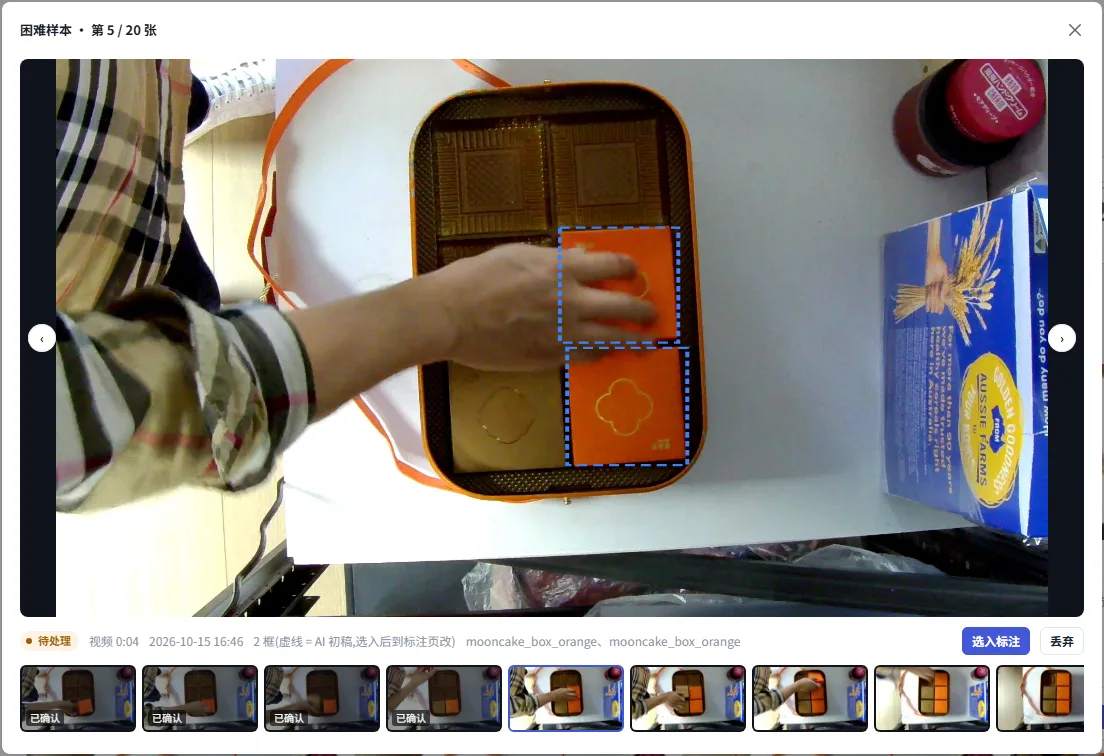
Add to labeling: tick the cards (or 全选本页 (Select page)), then click 选入标注 (Add to labeling). The images go to the labeling page with the status "待核查" (To review), and the AI draws a first draft.
Confirm on the labeling page: click 去标注页 (Go to labeling). It filters out the hard samples that need review automatically. Fix the boxes and save, or if the boxes are already right, just press J.
Discard the ones you do not want: tick them and click 丢弃所选 (Discard selected). You can still 还原 (Restore) them under "已丢弃" (Discarded).
They only count after you confirm them on the labeling page
Adding to labeling only puts them on the labeling page. Only after you confirm them on the labeling page do they count as "已确认" (Confirmed) and get used in the next training run.
Retrain automatically when enough build up
In "闭环编排" (Closed-loop settings) on the project's 概览 (Overview), set the "自动重训阈值" (Automatic retraining threshold): when this many newly confirmed hard samples have built up, and no other training is running at the time, training runs again automatically. Default 0 = off. See View projects and the overview.
FAQ
| What you see | Meaning | What to do |
|---|---|---|
| "原视频不存在(超过 30 天已自动删除…)" (The original video does not exist (deleted automatically after 30 days…)) | The hard sample's original video has expired | Just look at the captured images |